 PS Evolution
How to back up your PS Evolution accounts and settings
A backup saves the registered accounts and the tool settings of this computer to a file. You can export right away, import a saved file and let the app make automatic backups from time to time.
Automatic backup is on by default, every 2 hours, keeping the files for 7 days.
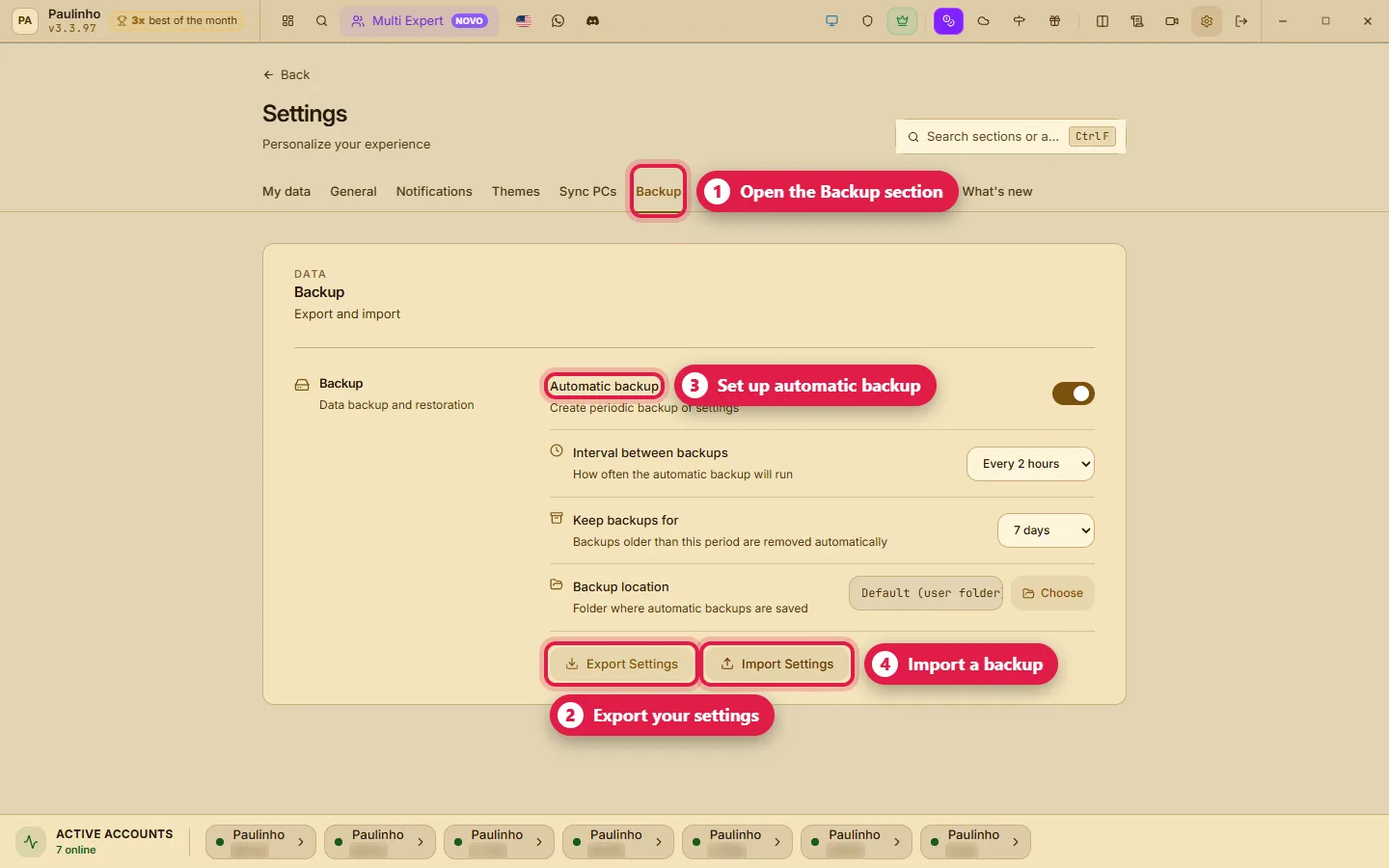
Step by step
-
Open the Backup section
Click the gear icon in the top bar and, under "Data", click Backup.
-
Export your settings
Click Export Settings. In the "Export backup" window, leave "All accounts" ticked or choose only some. Click "Export": the file
ps-evolution-backup-YYYY-MM-DD.jsonis downloaded. -
Set up automatic backup
With "Automatic backup" on, choose the "Interval between backups" (1 hour to 7 days), how long to keep them in "Keep backups for" (1 to 30 days or "Unlimited") and the folder in "Backup location" > "Choose". The item text shows the date of the last backup.
-
Import a backup
On the other computer (or after reinstalling), click Import Settings and pick the
.jsonfile. The app loads the backup and reloads the screen on its own.
What each option does
| Option | What it is for |
|---|---|
| Automatic backup | Creates a file with your settings on a schedule. On by default. |
| Interval between backups | How often the automatic backup runs: 1, 2, 4, 6, 12 or 24 hours, 2 or 7 days. |
| Keep backups for | Backups older than this are deleted on their own: 1, 3, 7, 15 or 30 days, or Unlimited. |
| Backup location | Folder for automatic backups. "Default (user folder)" or a folder you choose; the icon next to it goes back to the default. |
| Debug mode | When exporting, creates a file without the account passwords and without the app password, to send to support. |
Tips
- A normal backup includes the account passwords. Keep the file somewhere safe and don't send it to anyone. To send one to support, tick "Debug mode".
- To use the same accounts on two computers at the same time, the way to go is Online Mode, not backup.
Common problems
I imported and some accounts I had on this PC are gone.
Importing replaces this computer's accounts with the ones in the file. If the file was exported with only some accounts, only those stay. Import a backup that has all the accounts (automatic ones are in the "Backup location" folder).
I clicked import and nothing happened.
The file must be an unmodified PS Evolution .json backup. If it was edited or is corrupted, the import does not happen: use another file, such as one of the automatic backups.
The "Export" button is greyed out.
No account is ticked in the window. Tick "All accounts" or at least one.
See also
Do not have PS Evolution yet?
The download is free: download it, create your account inside the app and try everything for 24 hours, no card.