 PS Evolution
Tribal Wars interactive map: search, filter and act in bulk
The account Map shows the world in your diplomacy colors and brings into one screen what you would do across several: search for a player, see villages under attack, check scheduled commands and send a selection of villages to the Scheduler, Ennoble Villages or Farm Players.
The map needs the account session connected: that is where the world's villages and the live game data come from.
Step by step
-
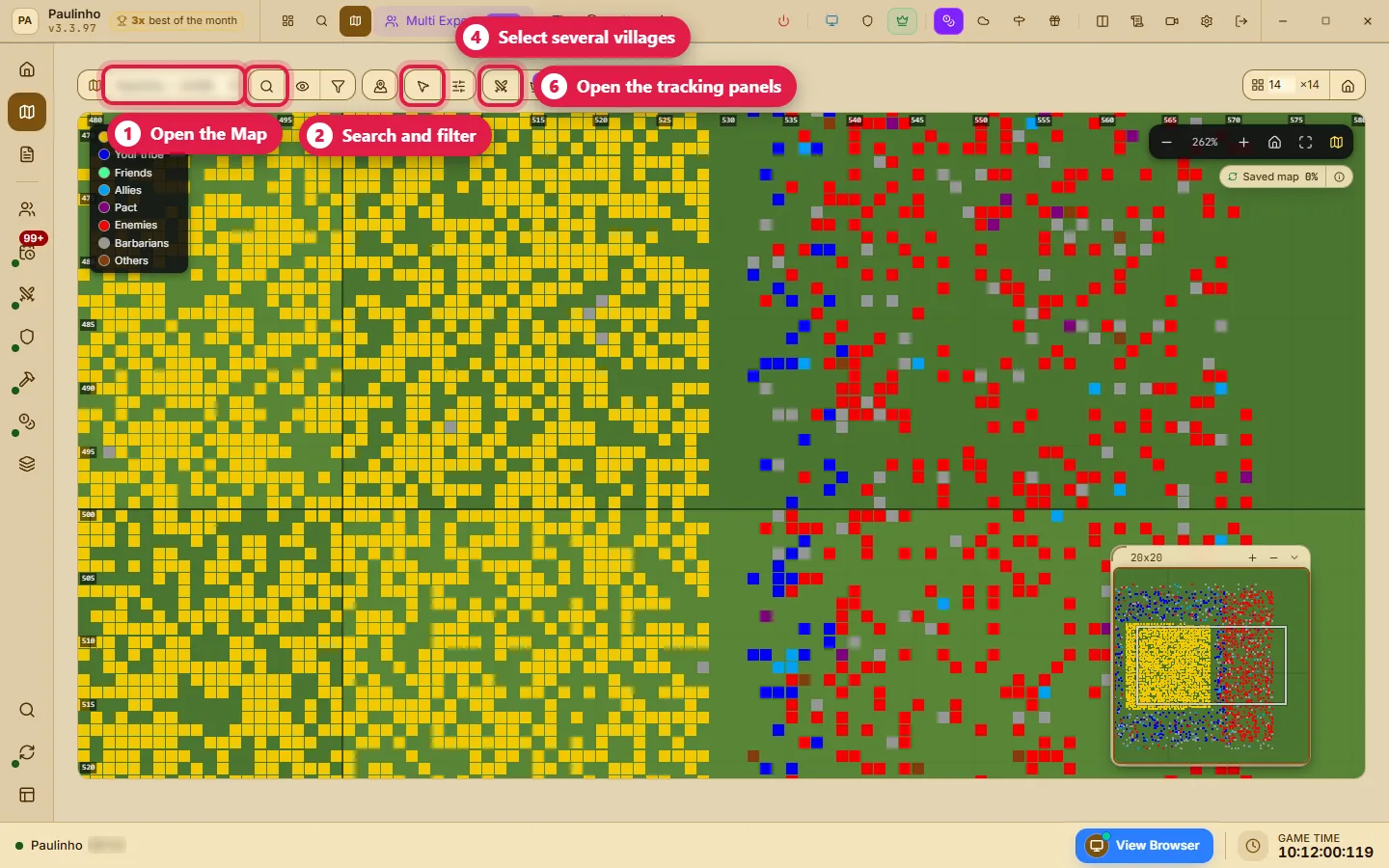
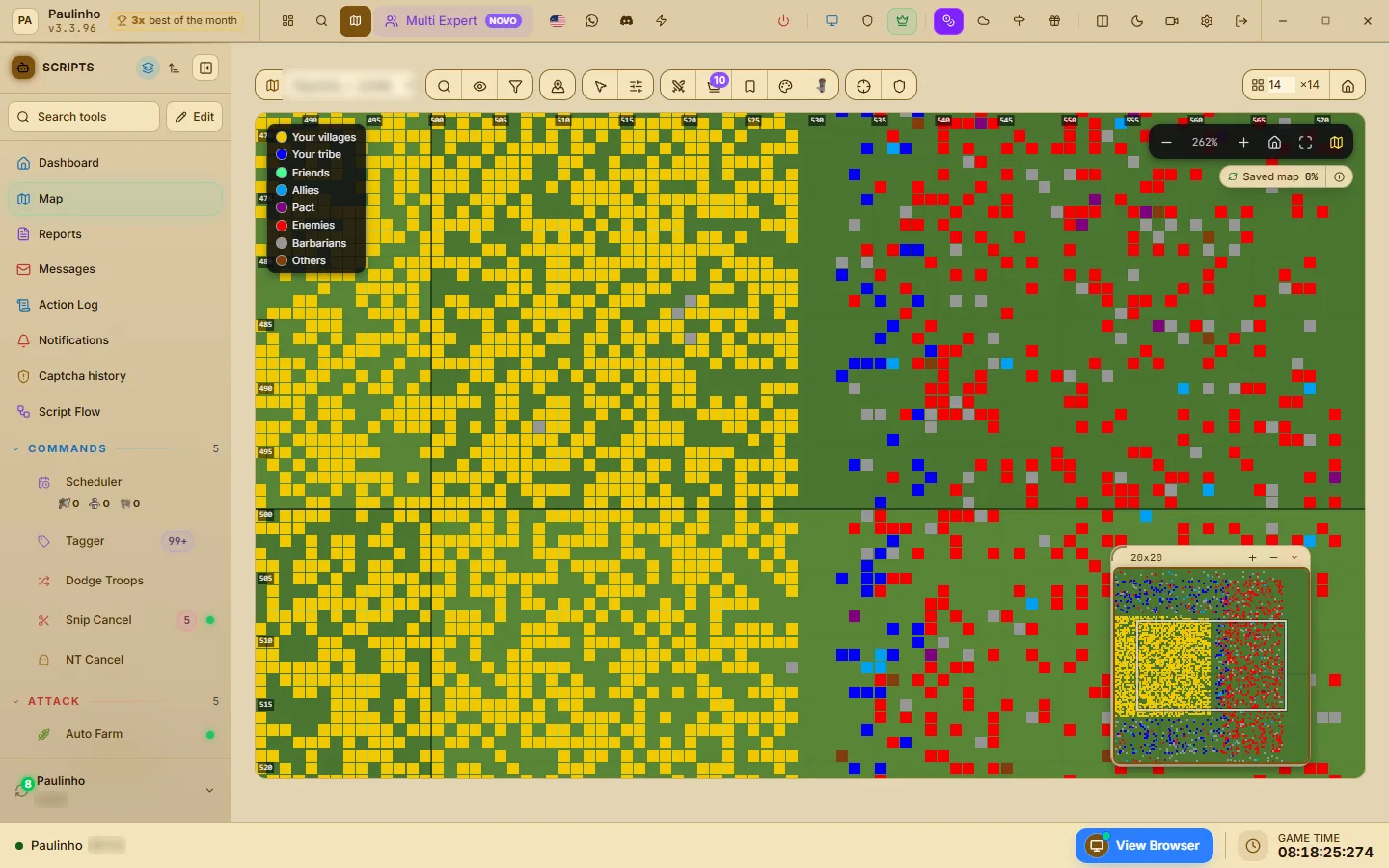
Open the Map
Inside the account, click Map at the top of the sidebar. Drag to move, use the mouse wheel to zoom and "My Village" to go back to the center. "View" changes the size of the area in fields.
Open the Map -
Search and filter
"Search" finds a player, tribe or coordinate. "Filter" shows only what matters: by diplomacy (Yours, Your tribe, Allies, Enemies, Barbarians...), by points and by continent (K). Players and tribes added to the filter get their own color on the map.
-
Click a village
The village panel shows owner, tribe and points, troops, incoming and returning game commands, and reports. From there you can "Schedule command" and "Reserve" the village. For defense, "Complete defence" and "Snipe" take the village to the Smart Support finder.
-
Select several villages
Click "Select" and drag with the left button to mark; Shift drags to unmark and the right button moves the map. The "Selection" panel sums up how many villages, barbarians, tribes and owners are marked.
-
Act on the selection
With villages marked, use "Schedule" (brings the coordinates as targets into the Scheduler), "Ennoble" (sends them to Ennoble Villages), "Farm" (sends them to Farm Players), "Reserve", "Cancel reservations" or "Copy coords".
-
Open the tracking panels
"Commands" lists scheduled commands by target or origin. "My reservations" lists your reservations. "Receiving Attacks" and "Receiving Support" show your villages with incoming commands ("Include the tribe" adds the last reading from the Tribe screen). "Ennoblements" marks the noble tool's targets.
What each option does
| Option | What it is for |
|---|---|
| Distance | Measures fields and ram and nobleman travel time from an origin, or from the cursor. |
| Watchtowers | Draws the watchtower range: cyan for yours, amber for your tribe's. "Read from the game" fetches your towers (requires a Premium Account). |
| Op routes | Shows on the map the routes of an operation built on the Tribe screen. |
| Load reports automatically | Opens the village reports as soon as you click it. |
Tips
- Zoom in on the map to click villages one by one.
- The game's attack and support icons show up as you browse the area around your villages.
Common problems
The map asks to "Start a session to view the map".
Connect the account on the Dashboard. Without a session, the app does not download the world's villages.
I see "Failed to download world data".
The session may have expired. Check that the account is connected and reload the map.
Some villages were not reserved.
Villages already reserved are skipped, and the summary says how many failed. Try again on the ones left.
See also
Do not have PS Evolution yet?
The download is free: download it, create your account inside the app and try everything for 24 hours, no card.