 PS Evolution
How to schedule attacks in Tribal Wars to the millisecond
The Scheduler sends your commands on its own, at the time you set. You pick the origin villages, the targets, the troops and the arrival time; the app works out each command's departure from the slowest unit and fires on the right millisecond.
Every time in the Scheduler is the game server time, the same clock Tribal Wars shows, not your computer's clock. The time field has hours, minutes, seconds and milliseconds.
For a command to go out, PS Evolution must be open and the account session connected at send time. The Scheduler screen can be closed: the queue runs in the background, on any screen of the app.
Step by step
-
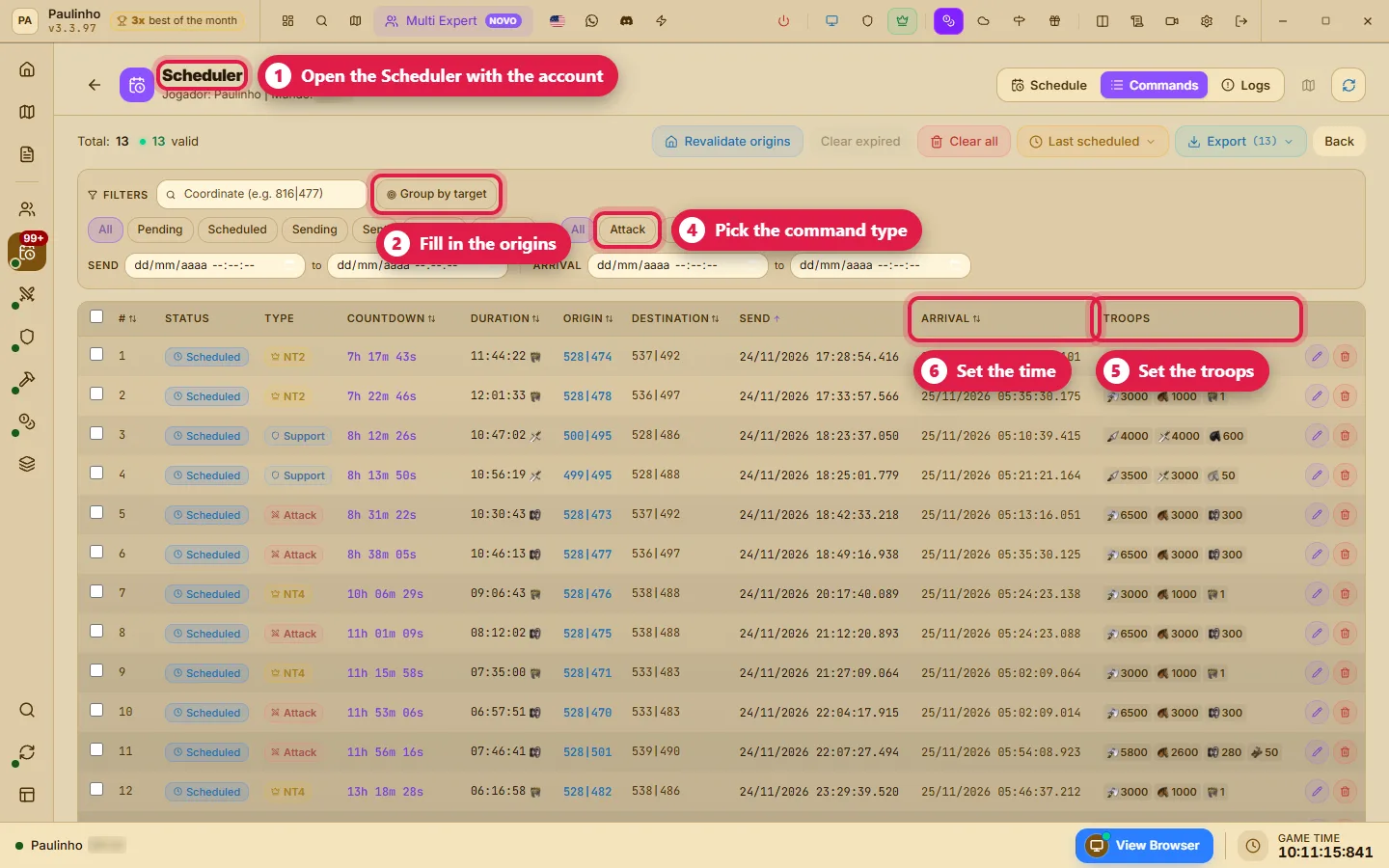
Open the Scheduler with the account connected
On the Dashboard, click the account name and pick Scheduler in the sidebar. If you can't find it, press
Ctrl+Kand type the name. The account must be connected: the Scheduler reads your villages, groups and troops from the game. The screen has three tabs: "Schedule", "Commands" and "Logs".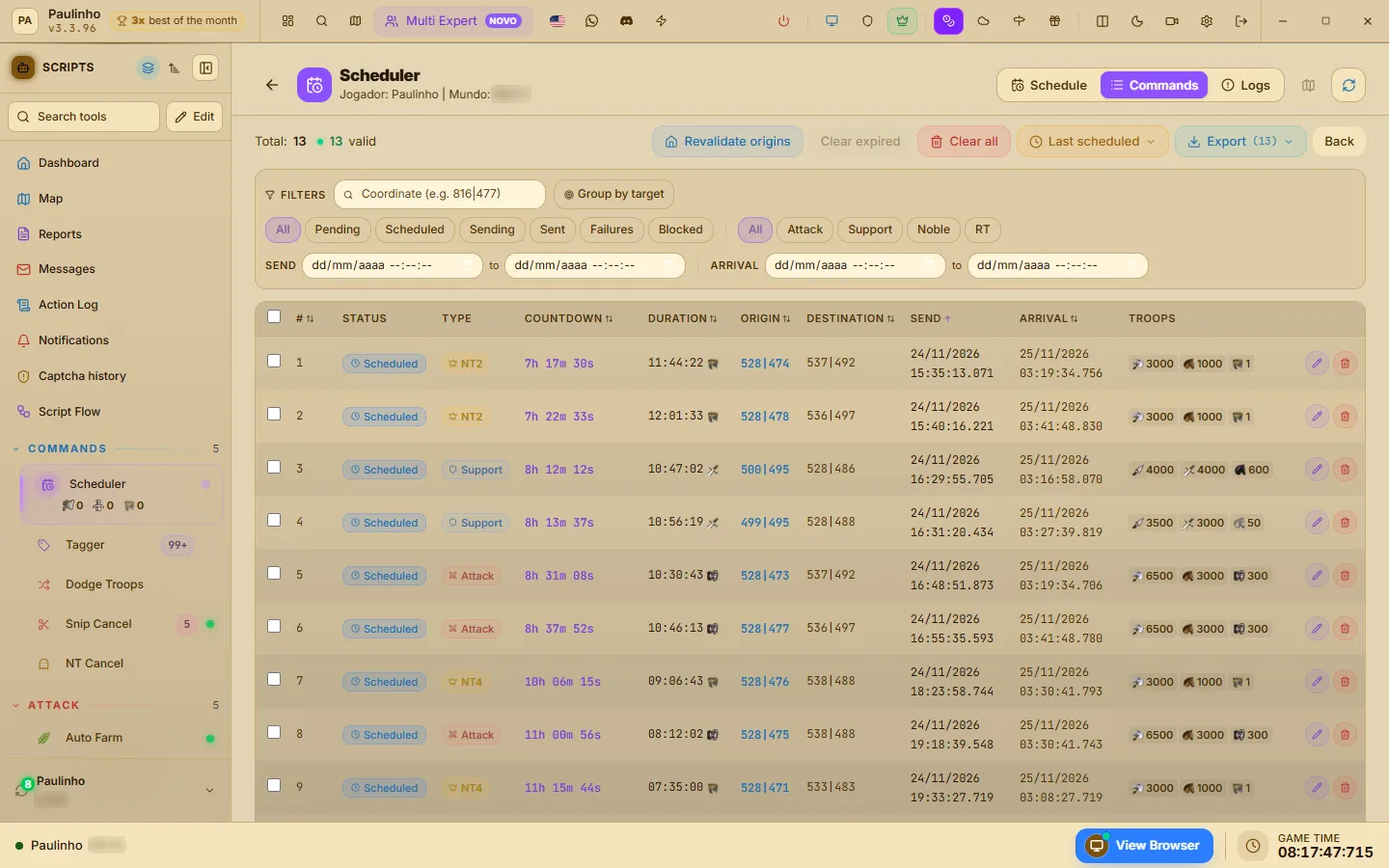
Open the Scheduler with the account connected -
Fill in the origins
In the "Origins" box, paste your village coordinates in the
500|500format, separated by spaces. To avoid typing them one by one, use "Group..." to bring in the villages of an in-game group; then you can keep or drop whole continents (K). "Remove scheduled" takes out villages that already have a command in the queue. -
Fill in the targets
In the "Targets" box, paste the coordinates that will receive the command. You can also pick a player from the list and bring in all their villages at once. The "Plan" button opens the Attack Planner, which picks the best origins for each target.
-
Pick the command type
Under "Command type", pick "Attack", "Support" or "2 Nobles" to "5 Nobles". With the noble types, the command is a noble train leaving from the same village, and each wave ("Noble 1", "Noble 2"...) has its own troops. Keep the same slowest unit in every wave: the time is calculated from it, and a faster wave would land early.
-
Set the troops
Under "Troops", type the amount of each unit, a percentage (
25%) or click the unit icon to setALL, which sends everything in the village at send time. Save the composition under "Models" to reuse it. With catapults, pick the building under "Catapult Target"; if you tick more than one, each command picks one at random. -
Set the time
Under "Scheduling", the default is "Fixed Arrival Time". Pick "Arrival" for all commands to hit the target at that instant, or "Departure" for all of them to leave at it. Fill in the date and time with milliseconds. The app works out each command's departure from the arrival and the travel time of the slowest unit.
-
Set how many commands go to each target
Under "Distribution", pick "Closest origins", "Average distance" or "Farthest possible". Under "Per Target", set how many commands each target gets, or use the button next to it to split the origins evenly between the targets. The reuse origins button decides whether the same village can serve several targets.
-
Review and schedule
The list icon next to "Schedule" opens the details: first send, arrival, last send, valid and expired commands, and the troops in the batch. Click a command to edit its origin, target, arrival or troops before confirming. Then click "Confirm" (or straight on "Schedule") and follow each one's countdown in the "Commands" tab.
What each option does
| Option | What it is for |
|---|---|
| Fixed Arrival Time | All commands arrive (or leave, if you pick "Departure") at the set time, with milliseconds. |
| Arrival Between Times / Departure Between Times | Each command picks its own time at random inside the "From" and "To" window. With "Arrival", the window is for arrival; with "Departure", it is for sending, and arrival is the send time plus travel. |
| Immediate Send | "Now" sends the commands one after another as soon as you click, and only while the screen is open. "Start at" queues the batch to start at the chosen time, even with the screen closed; if the app is off at that time, the batch goes out when the account opens. |
| Round Trip | After each send, the app sends again when the troops return (plus 5 seconds). Under "Total" you choose how many times, from 2 to 100. In "Departure" mode, "Interval (s)" spaces out the sends. |
| Commands to test sends | Sends several copies per origin ("Copies per origin", from 1 to 100), one every interval in seconds, starting at the set time. |
| Do not arrive between | Time ranges when no command may arrive, with Morning, Afternoon and Night shortcuts. The range handles midnight (23:00 to 08:00). A command that would land there is neither scheduled nor sent. |
| Noble range | Under "Extra Settings". A noble command with an origin farther than the limit is skipped. The default is 70 fields, the value on most servers. It does not affect attacks or support. |
| If the slowest unit is missing at send time | "Don't send" (recommended) holds the command if the unit that sets the time is not in the village. "Send anyway" sends what is left and recalculates the departure to land at the same time. |
Tips
- Open the details before confirming large batches: they list the expired commands and the ones without troops, which are not scheduled.
- In the "Commands" tab, "Undo last" removes the latest scheduled commands that have not left yet, and "Redo" puts back in the queue a batch undone in the last 24 hours.
- The "Windows" button at the top shows the rally point windows the Scheduler opened, and closes them all if needed.
- The map schedules too: select villages and use "Schedule" to bring them in as targets.
Common problems
I see "Expired commands detected". What do I do?
The send time for those commands has already passed: the troops would have to leave before now to land at the requested time. Pick a later arrival or origins closer to the target. Expired commands are skipped and the rest is scheduled.
The Scheduler asks for an active session.
Connect the account on the Dashboard. Without the session, the Scheduler cannot read your villages and troops, and it cannot fire at send time.
The noble command was not created.
The origin is probably beyond the "Noble range" (70 fields by default). Raise the limit under "Extra Settings" if your world allows more, or use closer origins.
The command shows as "Blocked".
Its arrival fell in a "Do not arrive between" range. The app offers to reschedule it for the next allowed minute, with the same origin, target and troops.
The command shows "Failed". Can I try again?
Yes. In the "Commands" tab, use "Try again" on the row. If the send time has passed, edit the arrival first. The reason for the failure shows in the row's diagnostics.
See also
Do not have PS Evolution yet?
The download is free: download it, create your account inside the app and try everything for 24 hours, no card.