 PS Evolution
How to get Tribal Wars attack alerts on WhatsApp and Telegram with PS Evolution
The Notifications screen sets where and to whom the account's alerts go: incoming attacks, conquests, troop dodges, snipes and captcha. The channels are WhatsApp, Telegram, Discord, Windows notifications, a sound alarm and the on-screen alert in the app.
The setup is per account, but it can be shared by several accounts at once. It is saved automatically. For attack alerts to go out, the account must be connected in the app.
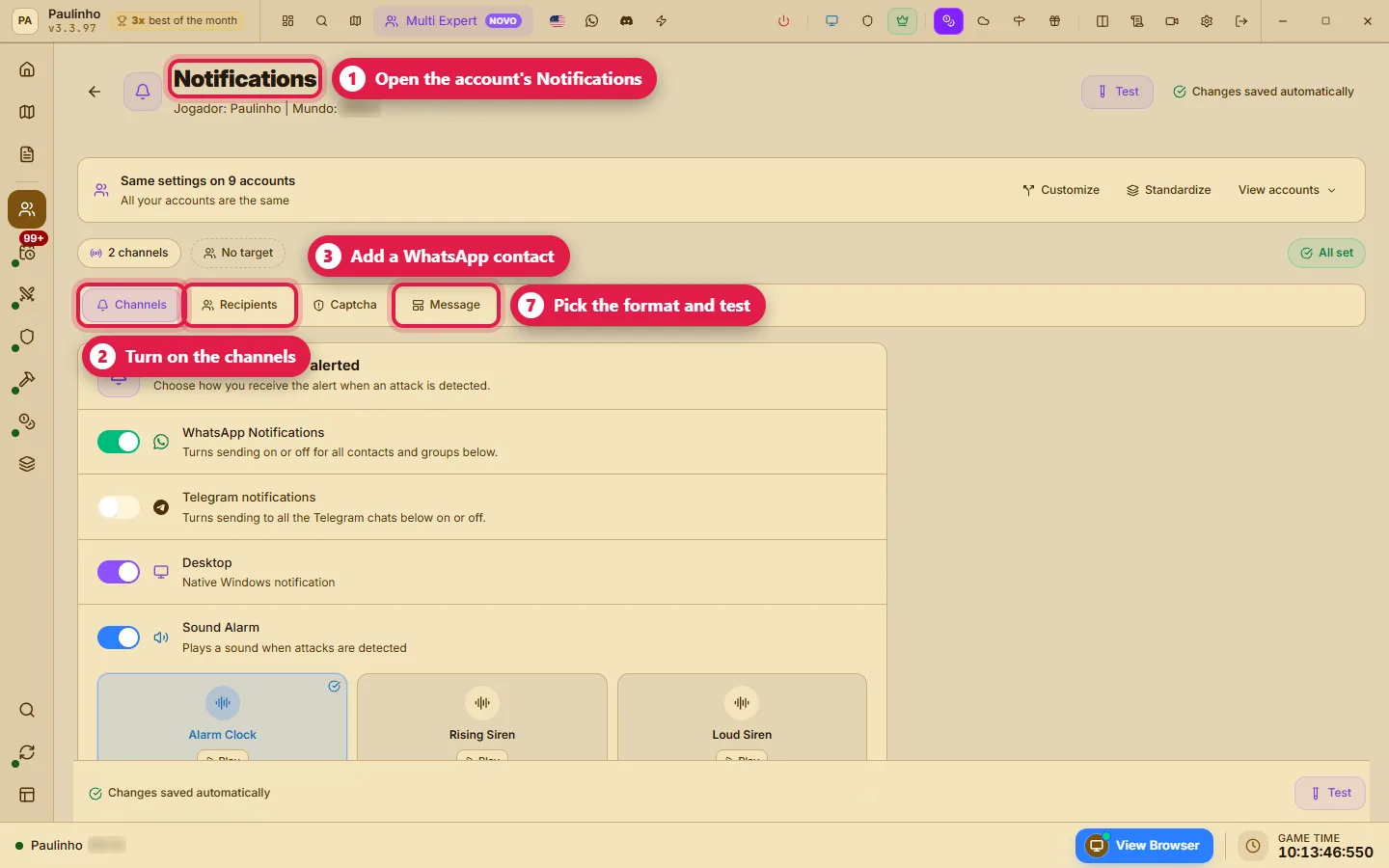
Step by step
-
Open the account's Notifications
Open the account and click Notifications in the sidebar. The screen has four tabs: "Channels", "Recipients", "Captcha" and "Message". The summary at the top shows how many channels and recipients are on, and whether it is "All set" or "Setup incomplete".
-
Turn on the channels
In the Channels tab ("Where you want to be alerted"), turn on "WhatsApp Notifications" and/or "Telegram notifications". There you also find "Desktop" (Windows notification), "Sound Alarm" (with a choice of which attacks play the sound), "On-screen Alert" and "Discord", where you paste a webhook URL from your server.
-
Add a WhatsApp contact
In the Recipients tab, copy the "Bot number" or click "Activate on WhatsApp": the chat with the bot opens with the activation message ready, just send it. Then, under "WhatsApp Contacts", click "Add contact", fill in "Name" and "Phone" (with country and area code) and click Confirm on the card: send the bot the code that shows up. A recipient only gets alerts after it is confirmed.
-
Alert a WhatsApp group
Add the bot to the WhatsApp group and send the message
id grupoin the group. The bot replies with the ID. Under "WhatsApp Groups", click "Add group", give it a name, paste the ID into "Group ID" and confirm the group the same way. -
Add a Telegram chat
Click "Open the bot on Telegram". In the chat that will receive the alerts (your chat with the bot, or a group the bot is in), send
/id. Under "Telegram chats", click "Add chat", paste the number into "Chat ID" and click Confirm, sending the code in the same chat. A group ID starts with "-". -
Choose what each recipient gets
On each recipient card, tick the "Notification types" (Attacks, Conquests, Dodge, Snip, Captcha) and, under "Which attacks to notify?", choose all, only rams and nobles, or nobles only. This way a group can get only conquests, for example.
-
Pick the format and test
In the Message tab, choose "Detailed", "Simple" or "Custom" and check the preview of how the message arrives. Then click Test at the top, or "Send test to this target" on a card, to make sure the alert arrives.
What the screen looks like
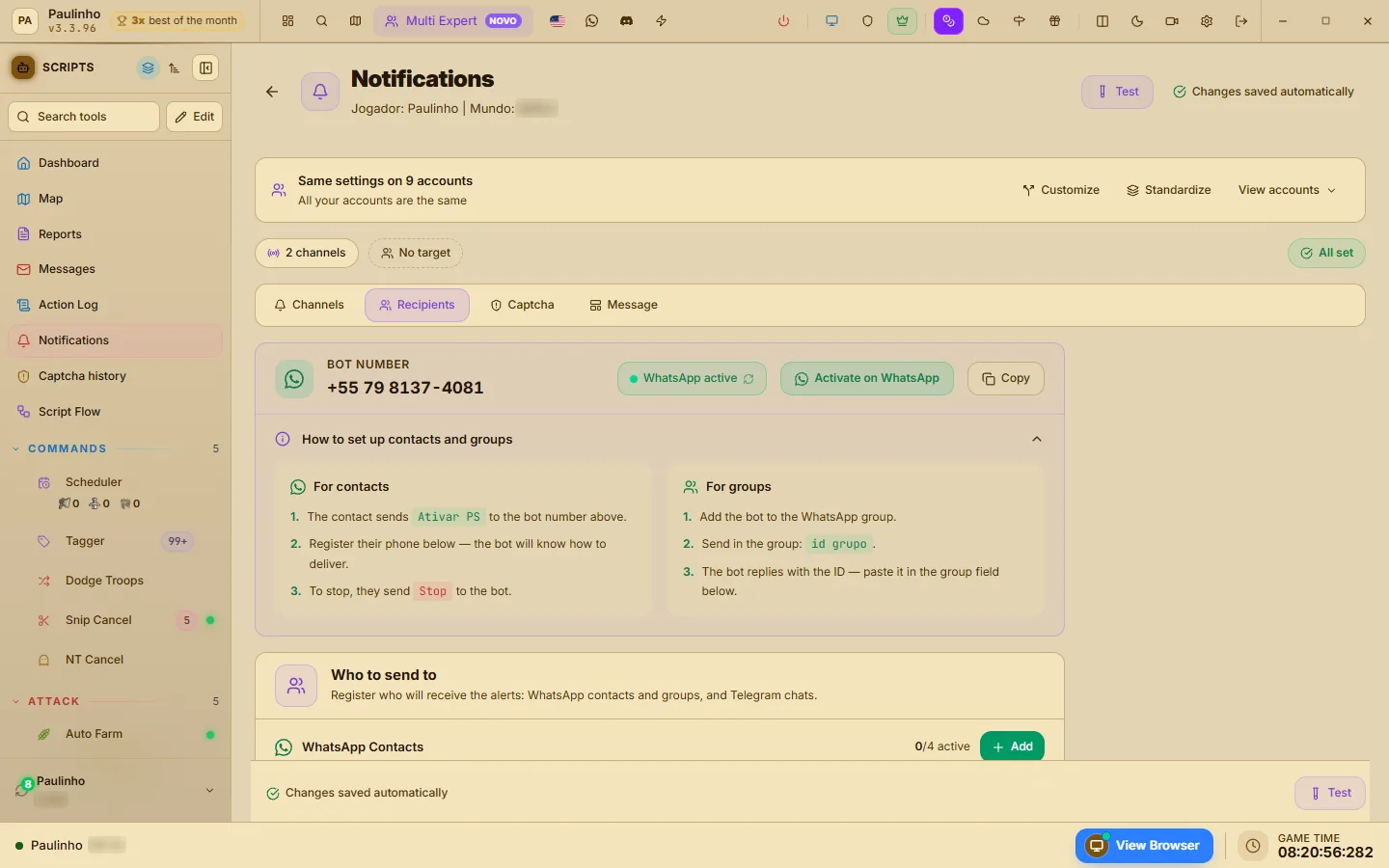
What each option does
| Option | What it is for |
|---|---|
| Desktop | Native Windows notification. |
| Sound Alarm | Plays a sound when attacks are detected; you can choose from which attack type it plays. |
| On-screen Alert | Shows the "Incoming attack!" bar at the top of the app, without blocking the screen, and keeps the siren on until you click "Acknowledge". |
| Minimum number of new attacks | Applies only to the sound alarm and the on-screen alert. WhatsApp, Telegram, Discord and Desktop still alert on every attack. |
| Discord | Alerts on your server through a webhook (Discord > Server Settings > Integrations > Webhooks > New Webhook > Copy Webhook URL). |
| Detailed | Full message with one block per target: origin, attacker, arrival and time left. |
| Simple | Short summary: total attacks, world and count by type. |
| Custom | You build your own message template. |
Tips
- Each setup holds up to 4 WhatsApp contacts, 4 WhatsApp groups and 6 Telegram chats.
- The bar at the top of the screen shows whether the setup is "Shared" with other accounts or "Own". Use "Customize" to change only this account, or "Standardize" to make other accounts match it.
- For a contact to stop getting alerts, they send "Parar" to the bot.
Common problems
The test arrives, but the attack alert does not.
Check three things: the recipient is "Confirmed"; the "Attacks" type is ticked on it; and the "Which attacks to notify?" filter is not set to "Nobles only" for a regular attack. The account must also be connected in the app.
The card says "Not confirmed".
Click "Confirm" on the card and send the bot the code shown, from the same number or chat you added. If the code expires, click "New code".
Telegram says the code came from another chat.
The ID on the card and the chat where you sent the code don't match. Send the code in the right chat (private chat for a positive ID, group for an ID with "-") or accept using the ID of the chat that sent it.
I see "We are having a WhatsApp issue right now".
It is an outage on the WhatsApp side. Desktop alerts and sound keep working. Use "Check again" after a while, or turn on Telegram as well.
See also
Do not have PS Evolution yet?
The download is free: download it, create your account inside the app and try everything for 24 hours, no card.