 PS Evolution
Attack landing late in Tribal Wars? How to calibrate the Scheduler
The Scheduler fires on the set millisecond, but the arrival the game records also depends on the path to the server and on the server itself. That is why the app measures, command by command, the difference between the expected arrival and the real arrival read from the game, and tells you how much to adjust.
The adjustment is the "Calibration delay": a fixed offset on the send. A negative value sends earlier, a positive one later. You can find the right value from the history or from a quick test with real sends.
Even when well calibrated, a small natural variation from the game server remains, which no adjustment removes.
Step by step
-
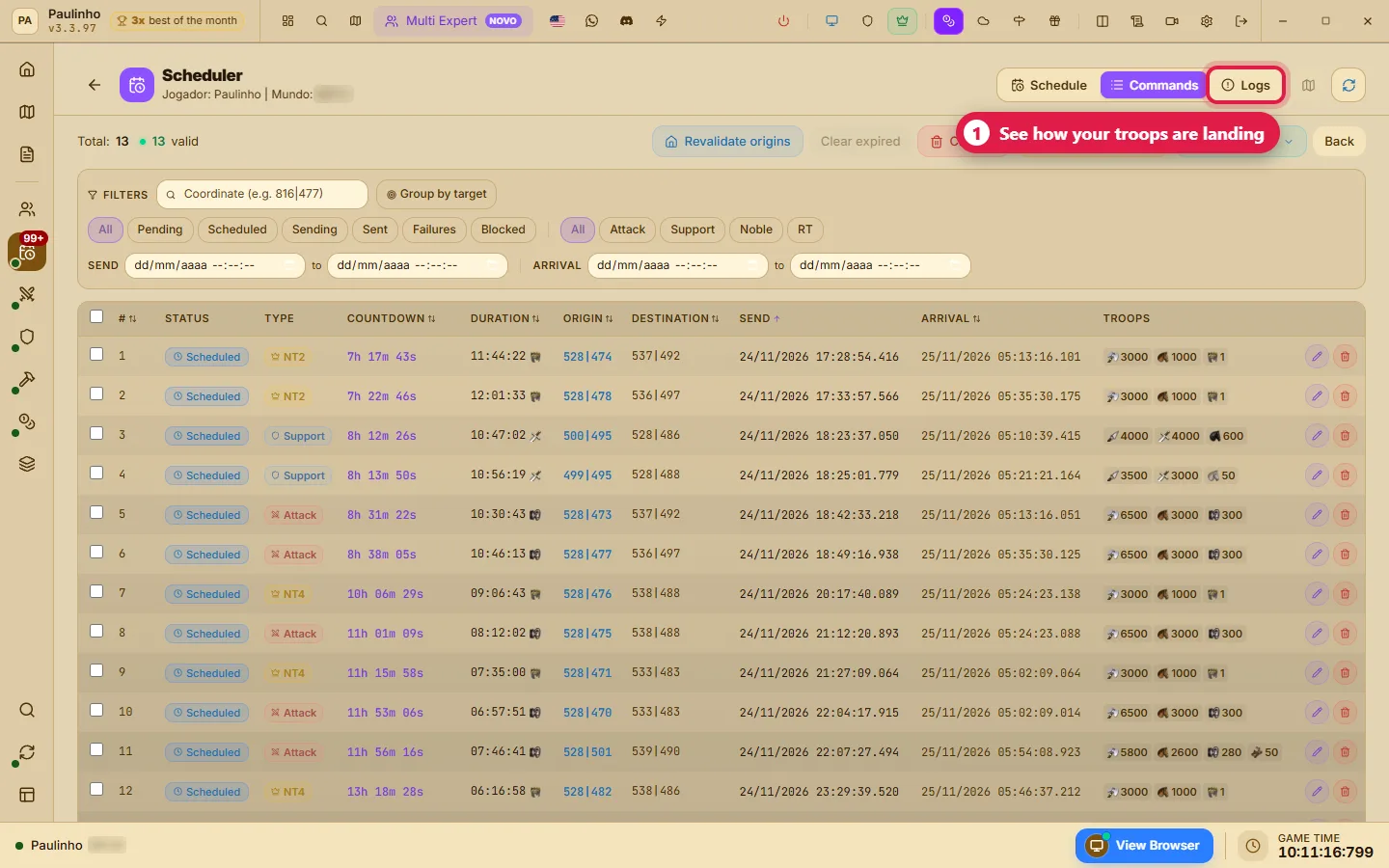
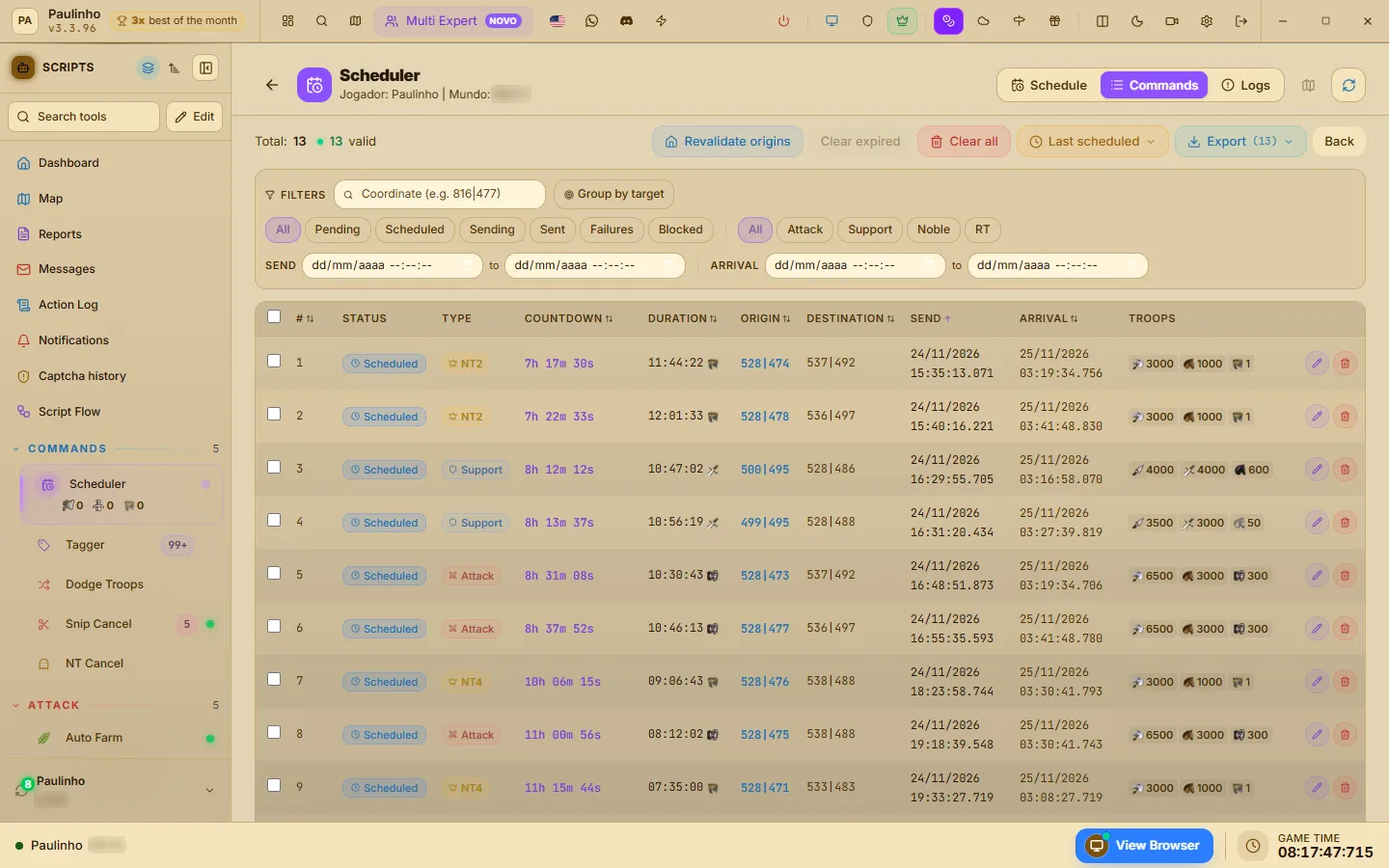
See how your troops are landing
In the "Logs" tab, the summary says whether troops are landing on time, early or late, and how much an arrival varies. The calculation only uses commands with an arrival confirmed by the game. Under "Measure" you can use the whole history or just the open page.
See how your troops are landing -
Use the suggested delay
Below the summary you see "To improve, set the delay to" with a value. Put that number in the "Calibration delay" field, replacing the current one. Don't add it to today's value: the calculation already accounts for the delay each command used.
-
Or test the delay with real sends
Under "Extra Settings", click "Test". The app makes 3 sends of 1 unit, as support, to a nearby village, waits for the set millisecond, reads the recorded time from the game and cancels right away (the unit comes back). It takes about 1 minute. At the end, use "Use" to save the suggested delay.
-
Pick the prep window
The "Prep window" is how long before the time the app starts building the command: opening the rally point, filling in the troops and reaching the confirmation screen. The final send still happens on the exact millisecond. "60s recommended" leaves room to retry if the screen is slow; below 30s, only on a very stable connection.
-
Pick the send method
"Stable" (recommended) fires when the app clock sees the target time and uses the calibration delay. "Latency compensated" (experimental) fires earlier, by half the round trip to the server, and corrects itself after each send, with no manual delay. Test a few rounds with each and compare in the "Logs" tab.
-
Find out what got in the way of a command
Under "What hurt the precision", the app lists the causes it found, such as the game taking long to record the send, the PC going to sleep, the rally point taking long to open, a slow connection, an affliction changing the travel time or the slowest unit not leaving. Click a row in the table to see that command's full diagnostics.
What each option does
| Option | What it is for |
|---|---|
| Calibration delay | Fixed send offset, in ms. Negative sends earlier, positive later. Only applies to the Stable method. |
| Test | Measures the delay with 3 real sends of 1 unit, cancelled right away, and suggests the value. |
| Prep window | "20s fast", "60s recommended" or "90s safe": time to build the command before the set time. |
| Send method | "Stable" or "Latency compensated". The Logs tab filters compare the two. |
| Fix arrivals outside the margin | Feature in testing. After the send, the app reads the real arrival; if it falls outside the margin ("May be early", "May be late"), it cancels and resends without the slowest unit, aiming at the same time. It turns itself off after each scheduling. A command with a nobleman has nothing to drop and is cancelled. |
| Send precision diagnostics | Sends support only timing data from your sends. Origins, targets and coordinates are never sent. |
Tips
- A very high delay is usually left over from an old adjustment. If the panel shows "High calibration delay", measure again.
- The precision filter in the Logs tab splits sends into up to 5 ms, 5 to 50 ms and over 50 ms. Start by looking into the ones over 50 ms.
- Don't let your computer sleep with commands in the queue: the clock jump shows up as a cause of imprecision.
Common problems
The test says the world does not show milliseconds.
Without milliseconds on the arrival, the delay cannot be measured on that world. The Scheduler still fires at the set time.
The test refused with "A scheduled command leaves in the next 4 minutes".
The test waits for the queue to be free so it does not disturb a real command. Run the test after it.
The test stopped because of a captcha.
Solve the check in the account's browser and test again.
The result says "It varied a lot".
The connection is unstable at that moment. Test again later before changing the delay.
The command landed earlier than expected and the diagnostics say the slowest unit was missing.
The time was calculated from the slowest unit, but it was not in the village and the command went out faster. Use "Don't send" under "If the slowest unit is missing at send time" to hold those commands.
See also
Do not have PS Evolution yet?
The download is free: download it, create your account inside the app and try everything for 24 hours, no card.