 PS Evolution
How to change the PS Evolution theme (light, dark or custom)
PS Evolution comes with several ready-made themes, an automatic mode that follows Windows or the time of day, and an editor to build a theme with your own colors.
The same screen holds the reading options: interface size, high contrast, less transparency and less motion. Everything is saved on this computer and applies right away, with no restart.
Step by step
-
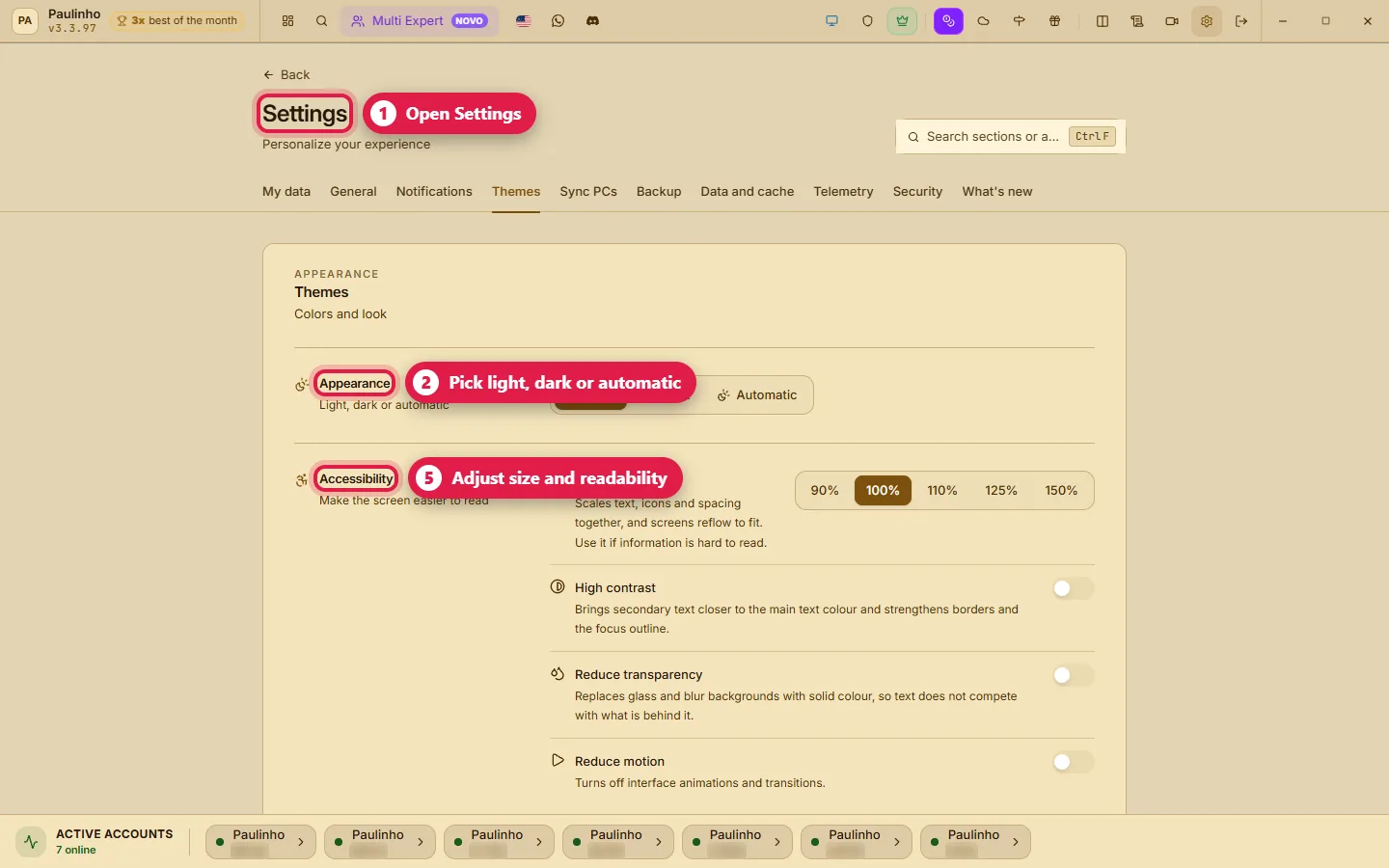
Open Settings
Click the gear icon in the top bar (tooltip "Settings"). In the list on the left, under "Appearance", click Themes. To get there faster, press
Ctrl+Fand type "theme". -
Pick light, dark or automatic
In the "Appearance" block, pick "Light", "Dark" or "Automatic". Automatic shows two options: "From system" (follows the Windows light or dark theme) and "By schedule", where you set "Light theme from" and "Dark theme from". The sun or moon button in the top bar also toggles light and dark on any screen.
-
Pick a ready-made theme
Scroll down to the themes block. Under "Default Themes", click the card of the theme you want: it becomes the current theme right away and gets a highlighted outline.
-
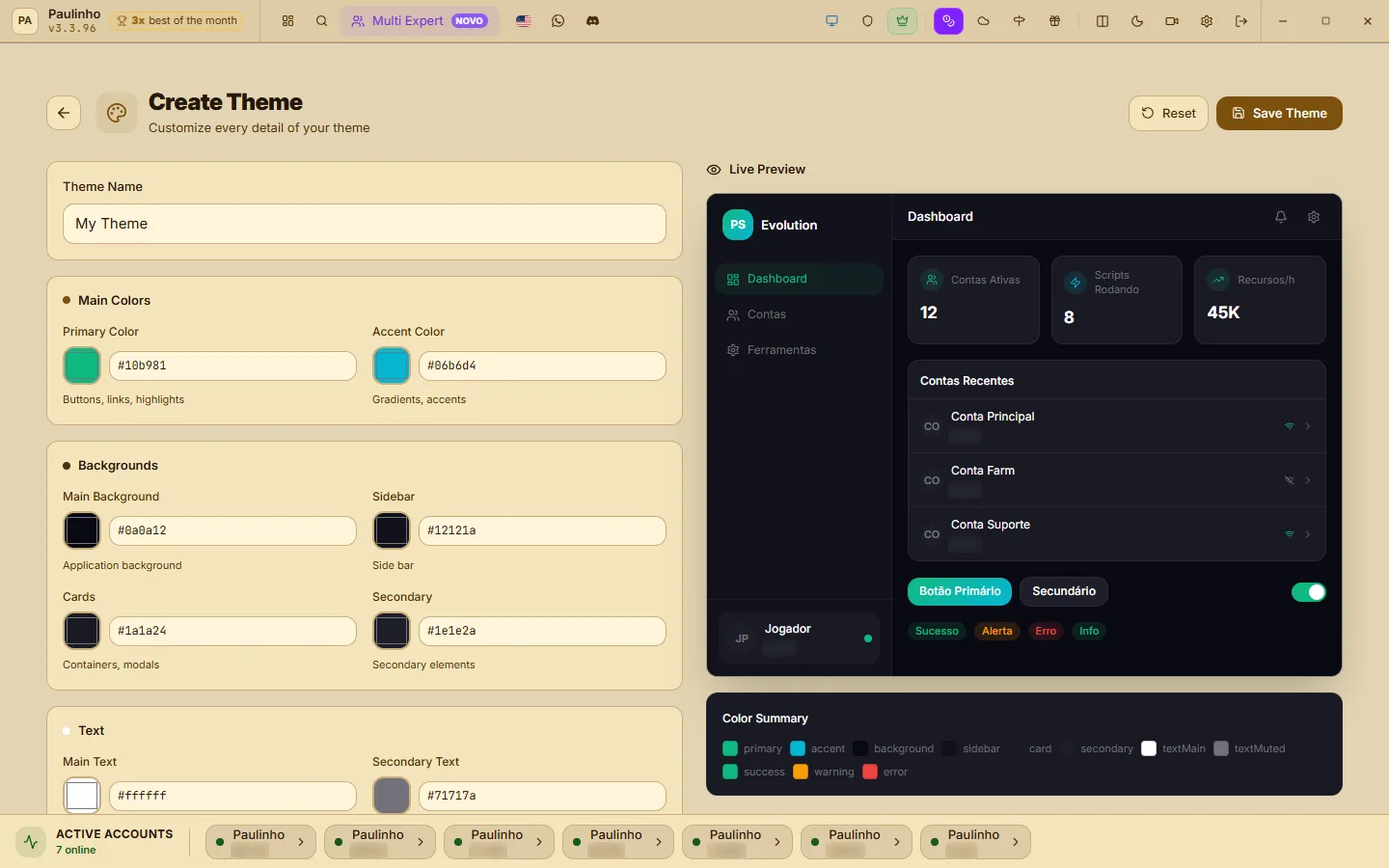
Create your own theme
Click Create Theme (or, on a ready-made theme, the copy icon "Use as base" to start from its colors). In the editor, give it a "Theme Name" and adjust the "Main Colors" (Primary and Accent), the "Backgrounds", the "Text" and the "Status" colors. The "Live Preview" shows the result. Click Save Theme: it is applied and shows up under "My Themes".
-
Adjust size and readability
In the "Accessibility" block, "Interface size" scales text, icons and spacing together (from 90% to 150%). There you also find "High contrast", "Reduce transparency" and "Reduce motion". Under "Display", "Density" changes the spacing between elements (Compact, Normal or Comfortable).
What the screen looks like
What each option does
| Option | What it is for |
|---|---|
| Automatic > From system | The app follows the Windows light or dark theme. |
| Automatic > By schedule | Switches between light and dark on its own at the times you set. |
| Interface size | Scales text, icons and spacing at the same time; screens rearrange to fit. |
| High contrast | Brings secondary text closer to the main text color and strengthens borders and the focus outline. |
| Reduce transparency | Replaces the glass and blur backgrounds with solid color. |
| Reduce motion | Turns off interface animations and transitions. |
| Soft interface | A style with lighter text, labels without all caps, thin icons and rounder corners. |
| Visual effects | Only shows on the glass themes (Crystal). "Off" swaps the glass for solid color and is the lightest choice for a weak computer or many open accounts. |
Tips
- To edit, duplicate or delete one of your themes, use the "Edit", "Duplicate" and "Delete" icons on its card under "My Themes". Default themes cannot be edited, only used as a base.
- If the app gets heavy with many accounts open on a glass theme, set "Visual effects" to "Light" or "Off".
Common problems
I deleted the theme I was using. Now what?
The app goes back to the first default theme on its own. Just pick another one from the list.
Text is hard to read on my custom theme.
Open the theme under "My Themes" > "Edit" and increase the difference between "Main Text" and "Main Background". If you prefer, turn on "High contrast" under "Accessibility".
I can't find the "Visual effects" option.
It only shows when the current theme is a glass theme (Crystal). Other themes have no effect to turn off.
See also
Do not have PS Evolution yet?
The download is free: download it, create your account inside the app and try everything for 24 hours, no card.