 PS Evolution
How to use "View browser" in PS Evolution to watch and play on your account
"View browser" opens a game window with the same session the app is using. You see the account as it is, without logging in again and without dropping the automation.
Use it to check what the app is doing, solve the game's captcha, pick a region in a new world or play by hand. It is the safe way to play alongside the app, because the game only allows one browser per account.
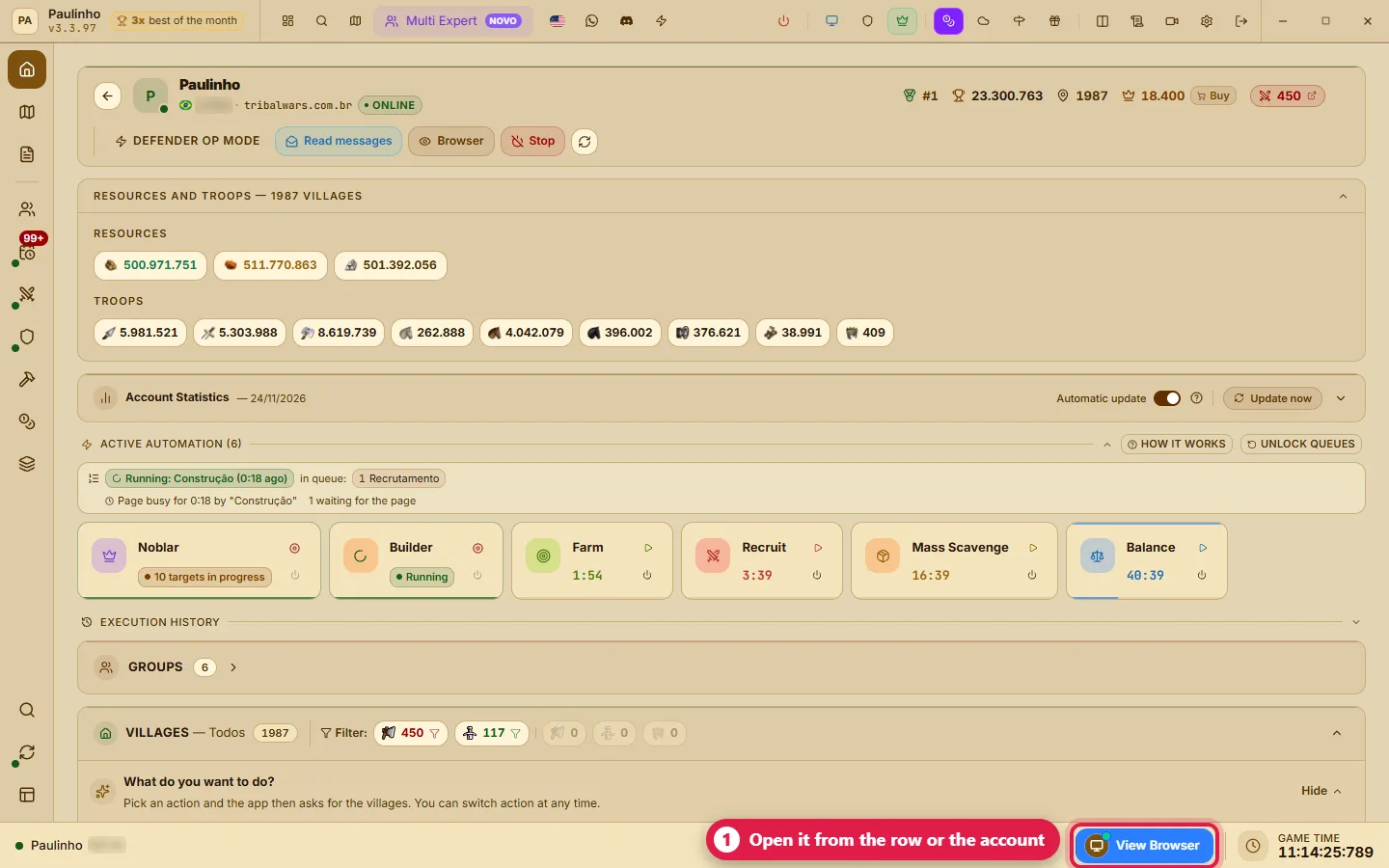
Step by step
-
Open it from the row or the account screen
With the account connected, click the "View browser" eye on its row, or open the account and click "View Browser" in the footer. With the account off, right-click it and choose "Connect (view browser)".
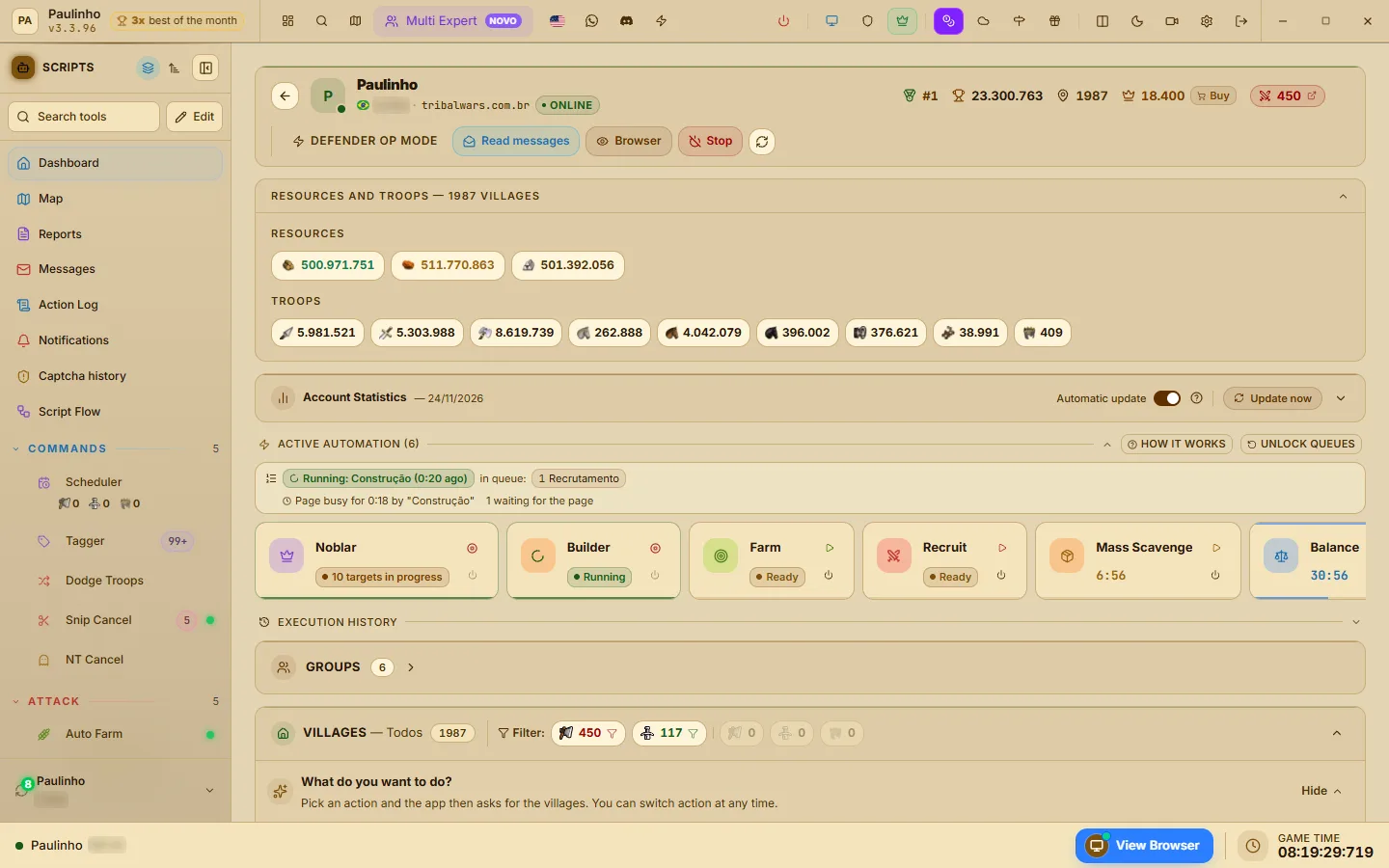
Open it from the row or the account screen -
Read the notice and acknowledge it
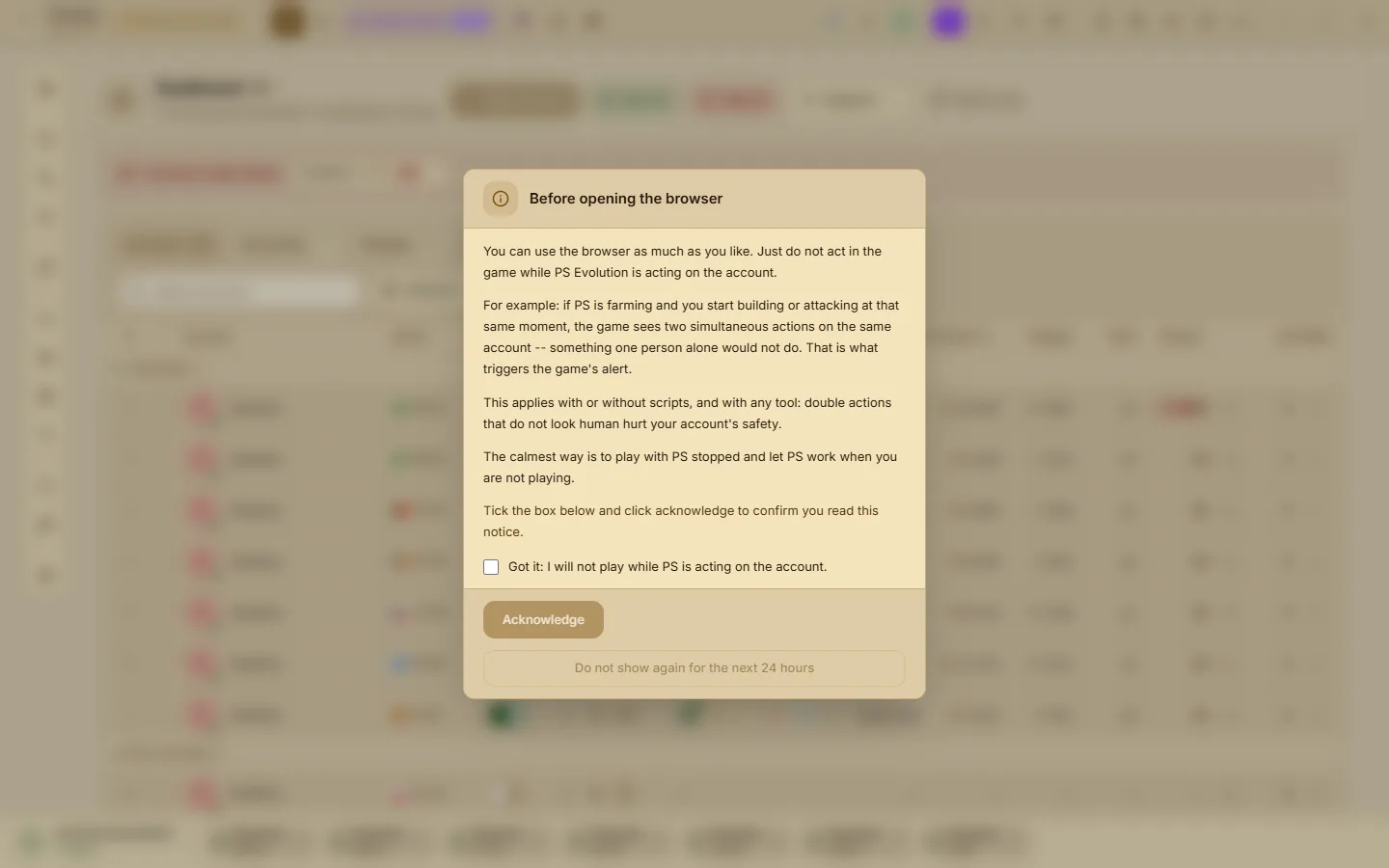
The first time, the notice "Before opening the browser" appears. Tick "Got it: I will not play while PS is acting on the account." and click "Acknowledge". To skip the notice for a day, use "Do not show again for the next 24 hours".
-
Use the window
The window opens straight into the game. If the account has no saved login yet, it stops at the login form, already filled in: log in and complete the check, and the app saves the login for the account.
-
Close it when you are done
Close the window as usual. The automation keeps running. Do not click "Log out" inside the game: that ends the session the app also uses.
What the screen looks like
What each option does
| Option | What it is for |
|---|---|
| View browser | Visible window with the same session as the automation. It does not log in again. |
| Connect (view browser) | In the right-click menu, for an account that is off: connects and opens the window right away. |
| Export cookies (play alongside) | Opens the "Play alongside the app" guide, which also shows how to use the same session in your own browser. |
| Session mirror | On a Secondary computer, the eye opens a mirror of the Main computer's session, with no new login. |
Tips
- The easiest way is to play with PS stopped and let PS work when you are not playing. Your actions and the app's at the same moment look like two people on the account.
- Never log in with your username and password in your own browser or on the main site while the app is running: the new login drops the app's session.
- Always solve the game's captcha through "View browser". Solving it in your own browser is a new login, which takes over the session.
Common problems
The "View browser" eye does not show on the row
It only shows when the account is connected. With the account off, use right-click > "Connect (view browser)".
The account says the session is paused while the visible browser is open
The session dropped several times in a row with the window open. Close the visible browser and the automatic session reconnects.
The account says it has no session and no saved login in the app
Connect the account with the connection switch (logging in in the game window, if asked) and open the browser again.
I opened the game in my Chrome and the account dropped in the app
Logging in with your password in another browser drops the app's session. Click "Resume" on the account and, to play alongside, use "View browser" or the "How to play alongside" guide.
See also
Do not have PS Evolution yet?
The download is free: download it, create your account inside the app and try everything for 24 hours, no card.