 PS Evolution
Mass scheduling in Tribal Wars: import a plan, BBCode and backtime
When the operation comes ready-made, from a planner or from your tribe's leadership, you don't need to build it command by command. The Scheduler imports the pasted plan, applies your troop models and works out each line's departure.
If you only have the list of targets, the Attack Planner does the other half: it picks the best origins for each target from an in-game group.
As with regular scheduling, the app must be open and the account connected at send time.
Step by step
-
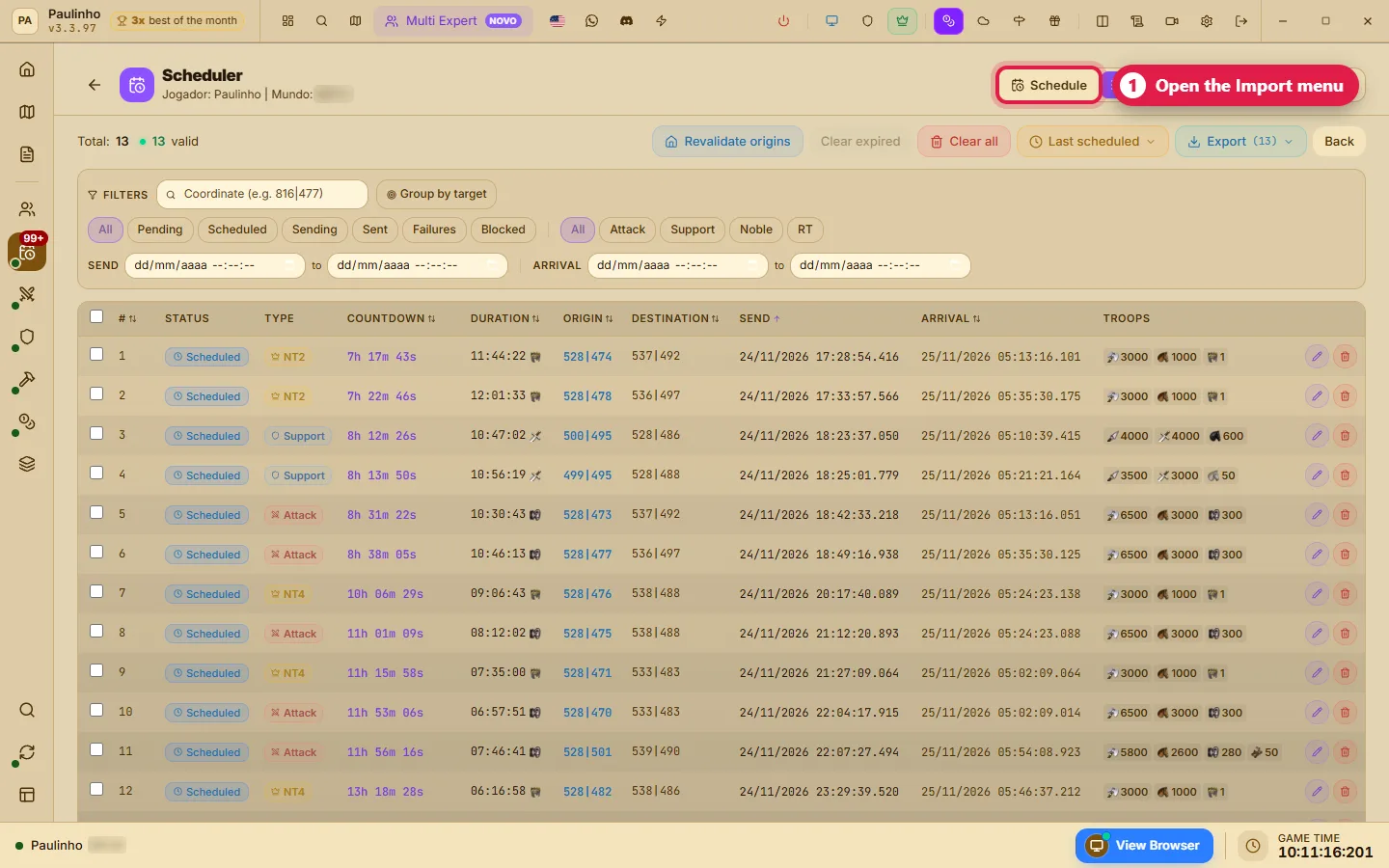
Open the Import menu
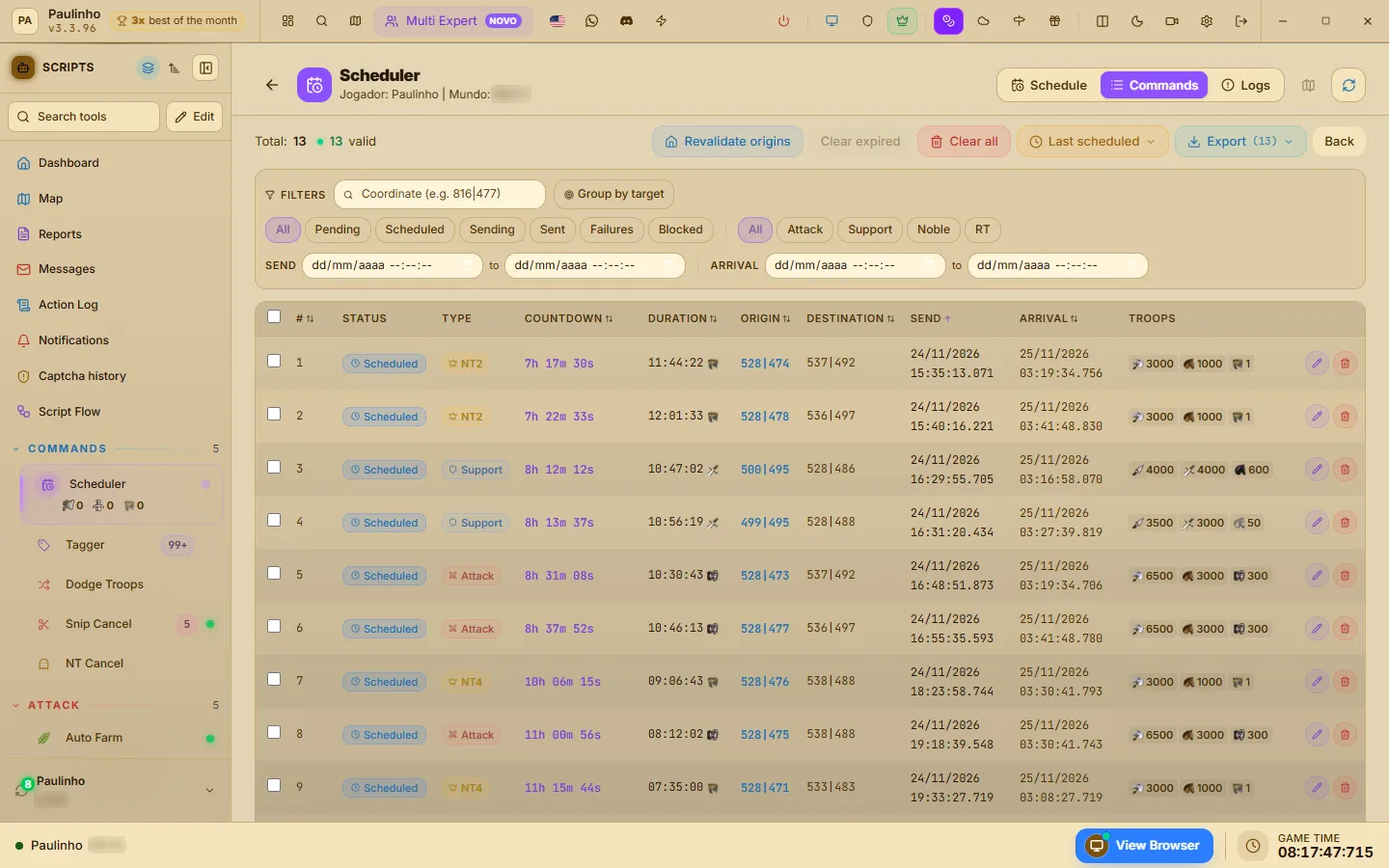
In the "Schedule" tab, click "Import". Four paths show up: "Import Plan" (Russian plan, Off Pack or BBCode by pasting the table), "Received backtime" (a backtime another player sent you), "PS commands" (a .json file exported by PS Evolution) and "Tampermonkey" (a .json file from the Tampermonkey scheduler).
Open the Import menu -
Paste the plan
In "Import Plan", paste the text into the "Plan (Russian / Off Pack / TW)" field. The app accepts the Russian plan, Off Pack 0.5+ as CSV and the TW format, and shows how many commands it recognized and how many lines it skipped.
-
Give troops to each plan type
Under "Troops by plan type", pick a troop model for each type the plan brought. With no saved model, use "Create model": click the unit icon for
ALL, or type a number or a percentage. -
Pick the arrival time
"From plan" uses the arrival that came on each line. "Fixed (all)" puts them all at the same time. "Interval" spreads the arrivals evenly between two times, in plan order. Times are game server time.
-
Check the preview and schedule
Each line shows the distance, duration, departure and a badge: "ok", "no troops" or "out of time". Only the valid ones go in; the ones already past and the ones without troops stay out, with the count in the footer. Click "Schedule" with the number of commands.
-
No plan? Use the Attack Planner
Paste the targets into the "Targets" box and click "Plan". Pick the "Origin Group", the distance order, the "Unit Filter" with the minimum amount, the troop model and the "Arrival Time" ("Fixed", "Interval" or "Immediate"). Click "Plan Attacks" and, in the "Results" tab, tick the origins for each target and click "Schedule".
What each option does
| Option | What it is for |
|---|---|
| Ignore w/ Scheduled Commands | In the Planner, leaves out villages that already have attacks, support or nobles in the queue (you choose which types count). |
| Night Bonus | In the Planner, sets the window when troops pause, so travel time is adjusted. |
| Distribute | In the Planner results, uses each origin at most once across all targets. |
| Top N, fields and hours | In the results, limits how many origins go in per target and up to what distance or travel time. |
| Export | Creates a .json of the pending commands, in the PS Evolution format or in the Tampermonkey scheduler format. |
Tips
- Before pasting a large plan, save your troop models in the "Schedule" tab: the import is then one click away.
- Message "This is a backtime, not a wave plan": use "Import" > "Received backtime" instead of "Import Plan".
- Commands from a plan with a village link go out from the village in the link, which avoids coordinate mistakes.
Common problems
I see "No command recognized in the text".
Check that you pasted the whole plan table, with origin and target coordinates. The app reads the Russian plan, Off Pack 0.5+ (CSV) and the TW format.
Several lines show "no troops".
The type of those lines has no model. Pick or create a model under "Troops by plan type".
Lines show "out of time" or "already passed".
The calculated departure fell in the past. Use "Fixed (all)" or "Interval" with a later time, or ask for a new plan.
The .json file was rejected.
Use "PS commands" only for files exported by PS Evolution, and "Tampermonkey" only for files from the Tampermonkey scheduler. Duplicate or expired commands are skipped, with a warning.
See also
Do not have PS Evolution yet?
The download is free: download it, create your account inside the app and try everything for 24 hours, no card.