 PS Evolution
How to plan a tribe op in Tribal Wars and send the plan to members
The Manage Tribe screen brings the leadership's work together: reading members' troops, seeing who can reach each village, building the plan for an offensive or defensive operation and handing each member only their own lines.
Reading troops uses the game's tribe troop overview, which only answers for players with admin permission, and only brings in members who share their troops with the leadership.
The leader never schedules anything on a member's account: the leader proposes, and commands only go into the member's Scheduler after they accept. The screen is marked "In testing": check the plan before handing it out.
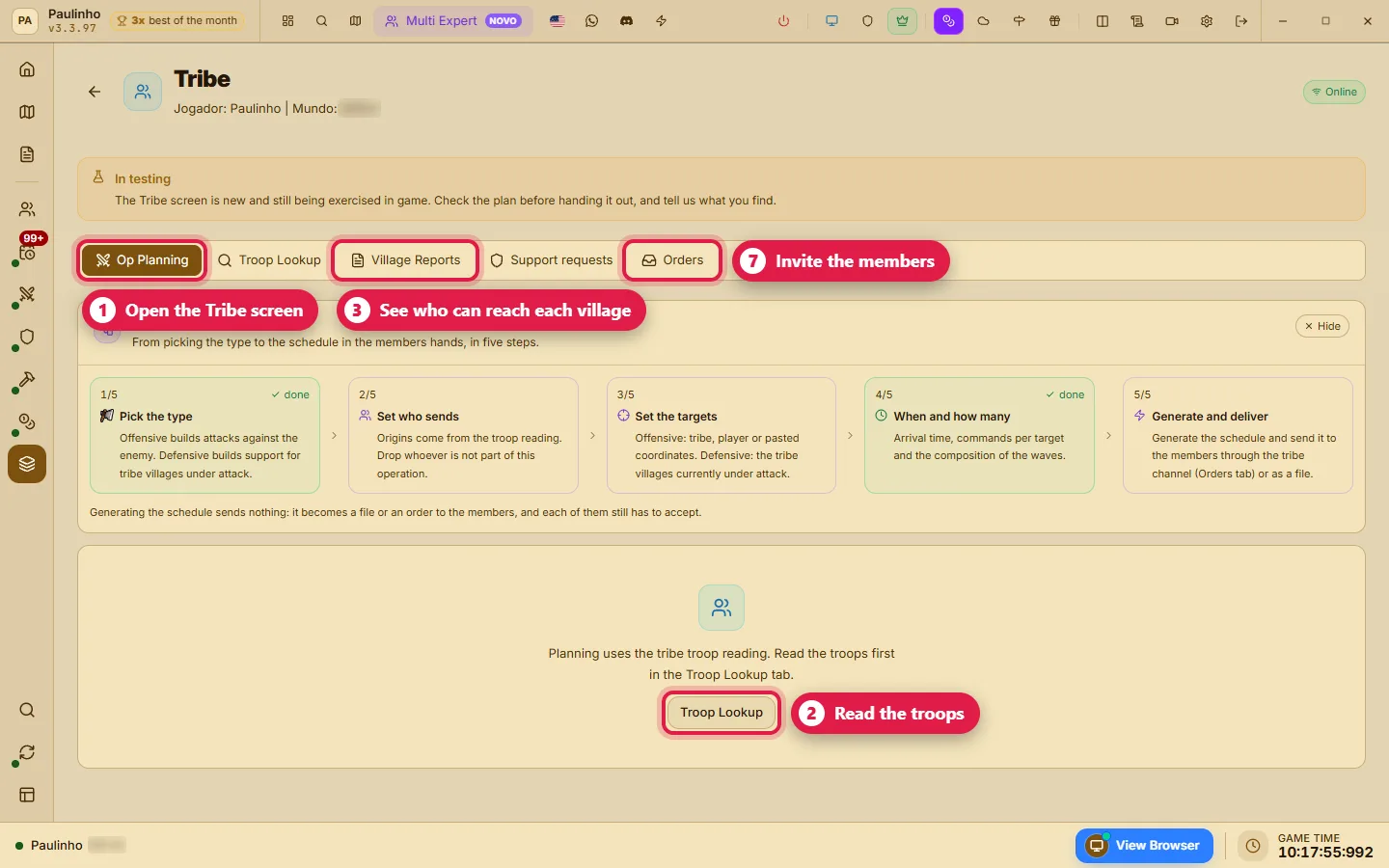
Step by step
-
Open the Tribe screen
Pick Manage Tribe in the account sidebar. The tabs are "Op Planning", "Troop Lookup", "Village Reports" and "Orders".
-
Read the troops
In the "Troop Lookup" tab, click "Load members", tick whose troops to read (shift + click ticks a range) and click "Read troops". The table shows each player with villages, points and incoming attacks. The reading is stored on the account and feeds the other tabs.
-
See who can reach each village
In the "Village Reports" tab, filter by player, village, coordinate or minimum troops. Under "Reach to", enter the coordinate and the arrival time to see who gets there in time. Copy as CSV to work outside the app.
-
Pick the operation type
In the "Op Planning" tab, pick "Offensive" (attacks on the enemy) or "Defensive" (support for tribe villages under attack, from the last reading). Under "Origins", remove whoever is not taking part and set the minimum troop filter.
-
Pick the targets and the rules
For offensive, search for the enemy tribe or player, or paste coordinates by hand. Under "Operation rules", set commands per target, per village and per player, minimum and maximum distance, continents the attacks leave from, distance priority, slowest unit, arrival date and time (server time), minimum morale and the balance between players.
-
Build the waves and the plan
Under "Attack composition", add "Clear", "Fake" and "Noble" waves, with how many per target, the shift in seconds and the interval in ms between commands. Click "Build plan". Use "Copy BBCode", "Copy CSV" or "View on map".
-
Invite the members
In the "Orders" tab, under "I am leader", click "Create invite" (nickname, uses and days of validity) and copy the code right away: it shows only once. The member pastes the invite under "I am member" with their in-game name.
-
Send the plan
At the end of the plan, use "Send to members". Each one gets only their own lines (the name must match what they declared) and decides under "Orders received": "Accept" puts the commands into their account's Scheduler, where they can still adjust them; "Reject" discards them.
What each option does
| Option | What it is for |
|---|---|
| Minimum morale (%) | Drops pairs where the attacker is too big for the target. |
| Balance | Spreads the commands across players before optimizing distance. |
| Minimum distance | Ignores origins too close to the target, to keep neighboring villages for something else. 0 = no limit. |
| Shift (s) and Interval (ms) | Shifts the wave relative to the target arrival and spaces arrivals between commands of the same wave. |
| Distribution (defensive) | "Maximum" takes the most from each village; "Split" shares the goal across several. "By distance" can reduce support from the farthest origins. |
| Support Finder format | In defensive mode, exports for the member to paste straight into the Smart Support Finder screen. |
Tips
- Read the troops again before each operation: the plan uses the last stored reading.
- Renewing an invite extends its validity without changing the code.
- An order from another world can only be accepted by the account on that world.
Common problems
I see a message saying the tribe troop overview only answers for players with admin permission.
Ask the leader for admin permission in the tribe and try again.
A member shows as "does not share troops with the leadership".
They need to turn on troop sharing in the game. Until then, they are not read.
The member did not get their lines.
The name in the plan must match the name they entered when joining the channel. Check under "Members in the channel".
The plan warns about commands with a departure in the past.
There is no time left to send those. Set a later arrival or adjust the distances.
See also
Do not have PS Evolution yet?
The download is free: download it, create your account inside the app and try everything for 24 hours, no card.