 PS Evolution
Read Tribal Wars messages automatically with PS Evolution
Players often send a message to check whether you are online: a message that stays unread says you are away. With automatic reading on, the app opens the new conversation by itself, and it shows as read to the sender.
The app only acts when the game shows a new message (the number next to Messages, like "Messages (1)"). Without a new message, it does not open the inbox. It only opens the message: it never replies or deletes anything. It works while the app is open and the account is connected.
Step by step
-
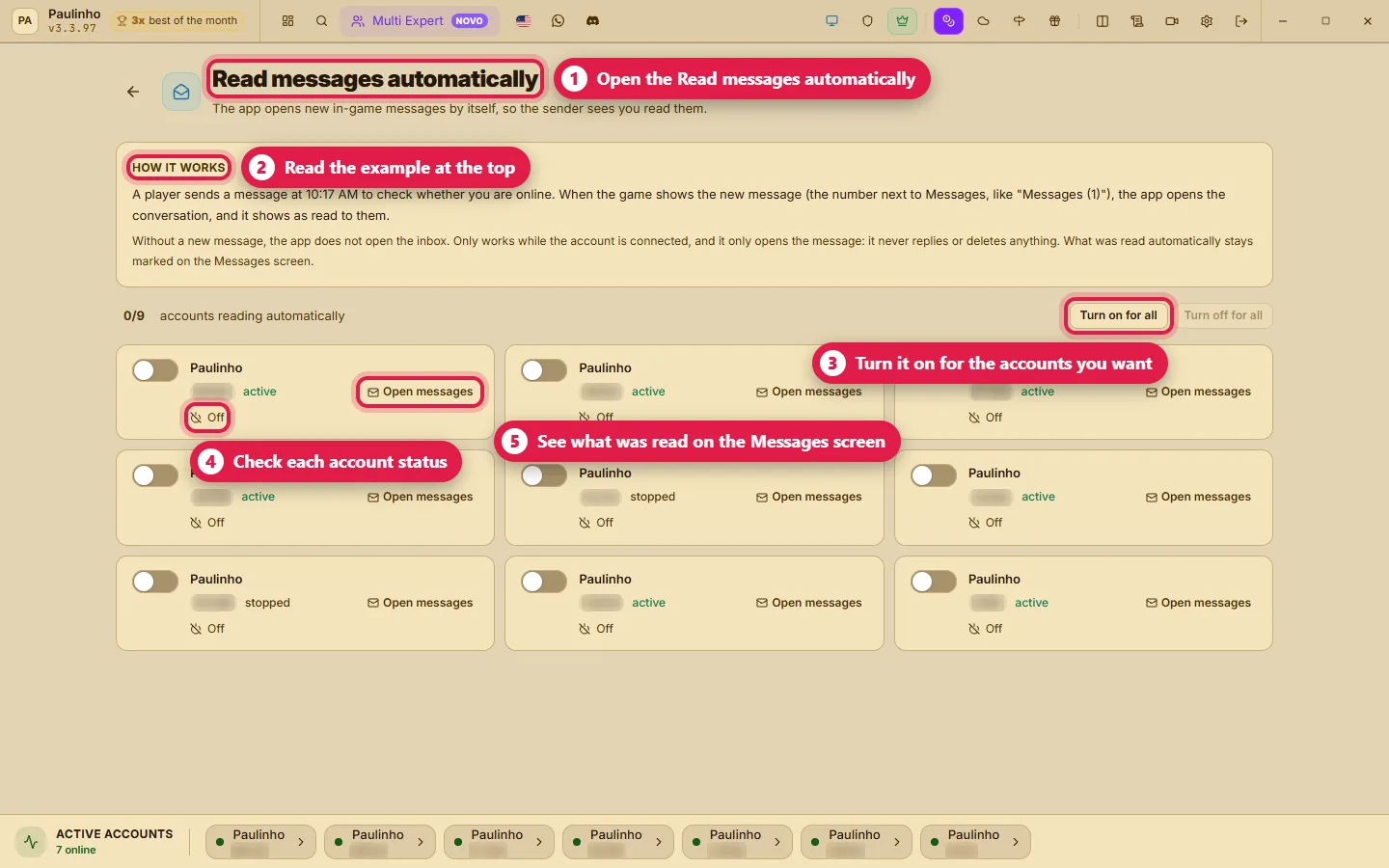
Open the Read messages automatically screen
On the account panel, click the Read messages button, next to the mode switches. From the tool search (
Ctrl+K), type "messages" and pick "Read messages automatically". The screen shows all your accounts, one card each.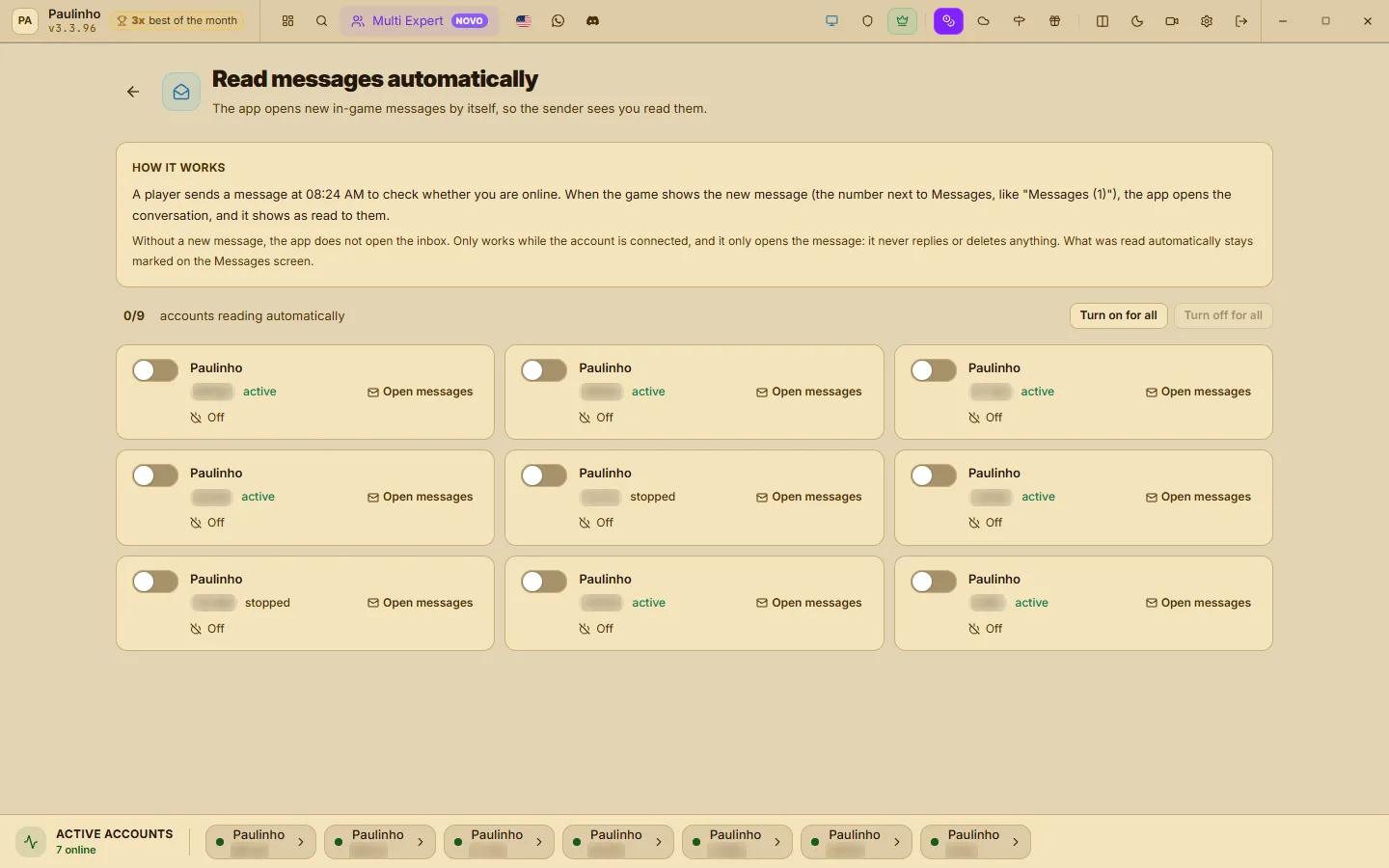
Open the Read messages automatically screen -
Read the example at the top
The "How it works" card shows a case with the current time: the player sends the message, the game shows the new message and the app opens the conversation. Right below is the limit of what the app does.
-
Turn it on for the accounts you want
Click the switch on each account's card. To turn all of them on or off at once, use "Turn on for all" or "Turn off for all". The counter next to it shows how many are in "accounts reading automatically".
-
Check each account status
Under the name and world, each card says what the reading is doing: "Off", "On, waiting for the account to connect", "On. Opens as soon as a new message arrives" or "New message: opening the inbox...". Once it has read something, you see "read today", the time of the last one and the last three conversations it opened, with time, subject and player.
-
See what was read on the Messages screen
The card's "Open messages" button takes you to the account's Messages screen. There the same choice shows as "Read automatically", and each conversation the app opened gets the "read automatically" tag, with the time it was opened.
What each option does
| Option | What it is for |
|---|---|
| Card switch | Turns automatic reading on for that account only. It is the same choice as "Read automatically" on the account's Messages screen. |
| Turn on for all and Turn off for all | Applies the choice to every registered account at once. |
| Open messages | Opens the account's inbox inside the app, to read, reply and delete. |
Tips
- Reading is not instant: the app notices the new message by the number the game shows next to Messages, checked together with the account's session reading.
- In a flood of messages, the app opens up to 10 conversations at a time and leaves the rest for the next check, with a short pause between conversations.
- Each conversation is opened once. If a new reply arrives in the same conversation, it is opened again.
Common problems
The card says "On, waiting for the account to connect".
Reading only works with the account's session connected. Connect the account on the accounts screen and the status changes by itself.
I see "Could not read the inbox".
The game did not answer at that moment. The app tries again on the next new message. If it keeps happening, check that the account's session is up.
A message arrived and the app did not open it.
Check that the account's switch is on and that the account is connected. With a pending captcha on the account, reading waits until the check is solved.
Did the app reply to or delete a message?
No. Automatic reading only opens the conversation. Replying and deleting are always done by you, on the Messages screen.
See also
Do not have PS Evolution yet?
The download is free: download it, create your account inside the app and try everything for 24 hours, no card.