 PS Evolution
 Action Log: see everything the account did and when
The Action Log is the account's black box: it stores on your computer everything each tool did, with the time down to the millisecond and the duration. It is how you find out what happened at a given time.
The "Overlaps" tab shows the moments when two tools acted on the same account at the same time. The log stays on this computer only and is never sent anywhere.
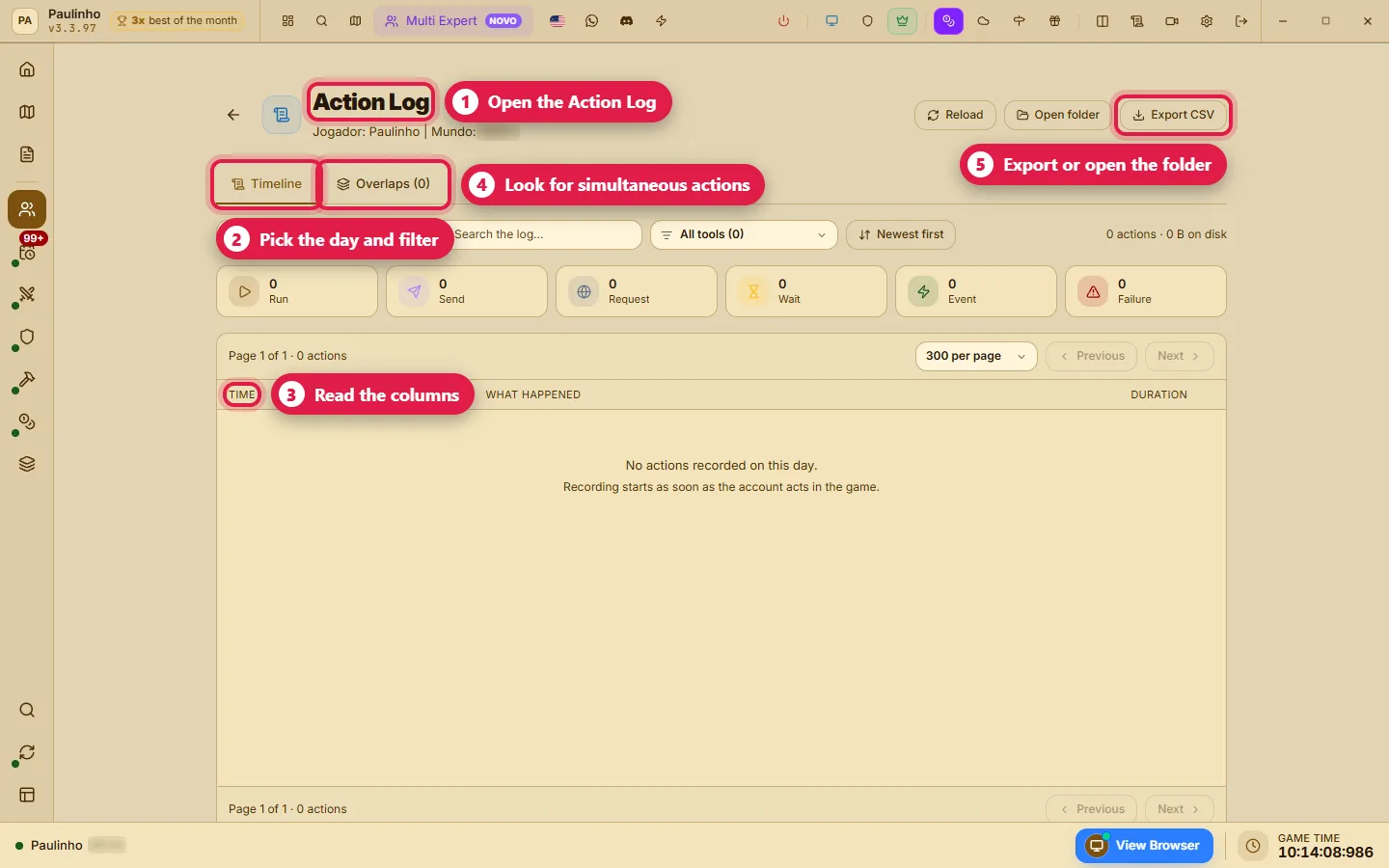
Step by step
-
Open the Action Log
Open the account and click Action Log in the sidebar.
-
Pick the day and filter
In the "Timeline" tab, pick the day from the list (each day shows how much disk space it takes). Use "Search the log..." to look for a text and the tool list to see just one tool. The "Newest first" / "Oldest first" button flips the order and "Clear filters" removes them all.
-
Read the columns
Each row has "Time", "Tool", "What happened" and "Duration". The entry types are Run, Send, Request, Wait, Event and Failure.
-
Look for simultaneous actions
Open the Overlaps tab. It lists the moments of the day when two tools acted on the account at the same time, with the "overlapping time".
-
Export or open the folder
Use Export CSV to save the filtered day as a spreadsheet, or "Open folder" to see the files on your computer.
What each option does
| Option | What it is for |
|---|---|
| Record actions | Turns recording of what each account does on or off. |
| Record every game request | Also logs every request sent to the game server. It is the most detailed level and the one that takes the most space. |
| Keep for | Older files are deleted on their own: 7, 14 or 30 days, or No limit. |
| Delete this account's log | Removes every recorded day for the account and shows how much space will be freed. |
Tips
- The options are in the "Settings" tab of the screen itself.
- If your computer is low on space, leave "Record every game request" off and set "Keep for" to 7 days.
Common problems
I see "No actions recorded on this day."
The log starts recording when the account acts in the game. Check that "Record actions" is on in the Settings tab and that the account was connected that day.
The list shows only part of the day.
Very busy days show the newest entries first. Use "Load more", the search or the tool filter to get to the time you are looking for.
See also
Do not have PS Evolution yet?
The download is free: download it, create your account inside the app and try everything for 24 hours, no card.