 PS Evolution
Tribal Wars auto scavenging without Premium Account: Individual Scavenge
Individual Scavenge scavenges village by village, with troops, levels and time chosen for each one. It doesn't depend on the game's mass scavenging screen, so it works for players without a Premium Account.
The world must have scavenging, and the account session must be connected to import the villages.
Step by step
-
Import the villages of a group
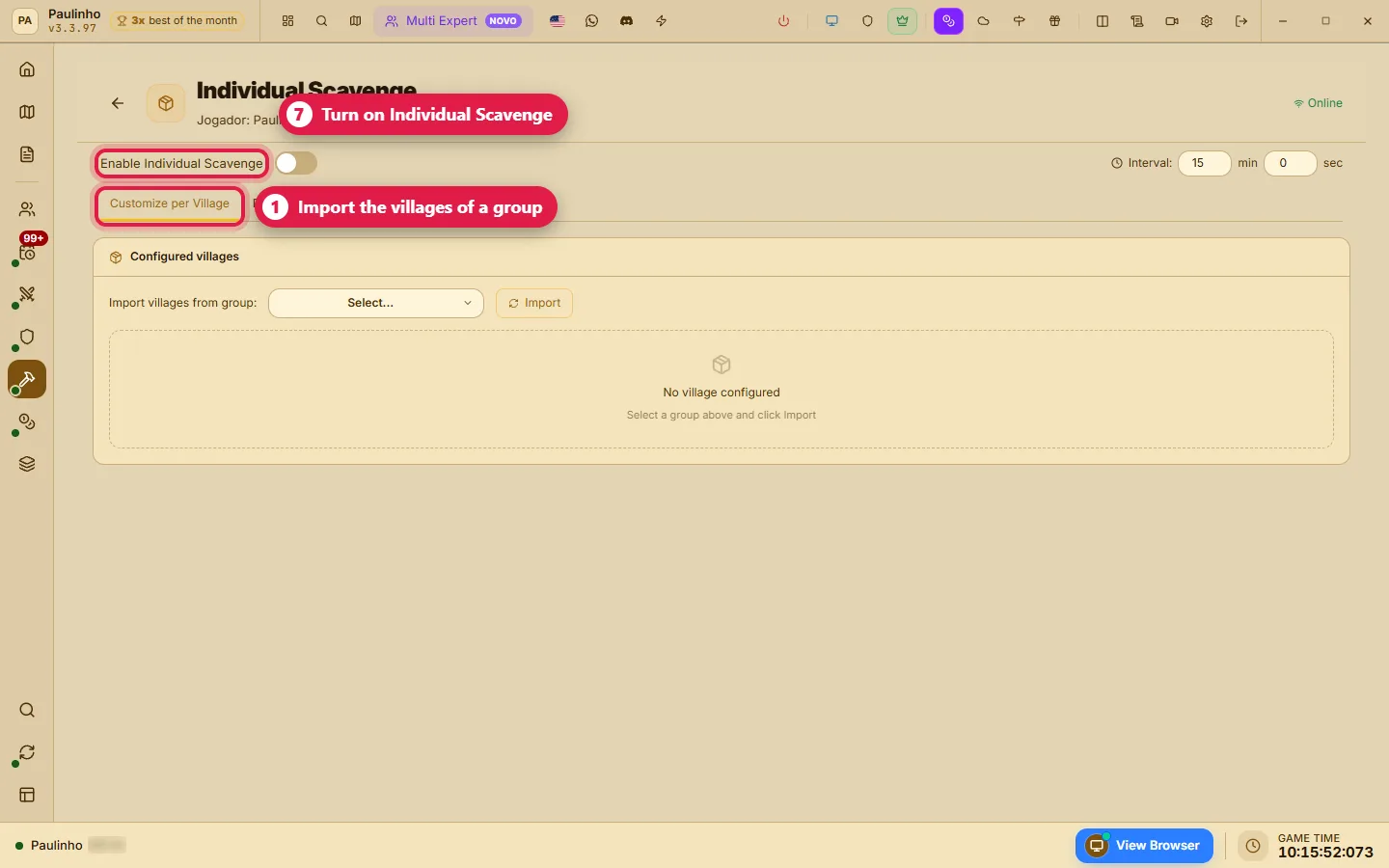
On the "Customize per Village" tab, under "Import villages from group:", pick a group (or "All") and click "Import". The villages come in enabled, with the default settings.
-
Pick the scavenging levels
Open a village and check under "Scavenge levels that will be used" which categories it uses: Small, Medium, Large and Extreme. With no level checked, the village is not scavenged.
-
Set the duration and distribution
Under "Max duration:", enter how many hours the troops can stay out (default 2 hours). Under "Distribution:", choose "Prioritize largest" or "Distribute equally" (every free category finishes within the set time).
-
Pick the troops and reserves
Under "Units and reserves at home", check the troops that can scavenge and how many of each stay home. Only units that carry resources are listed.
-
Leave auto unlock on
"Unlock categories automatically" comes on by default: a locked category scavenges nothing. Under "Levels that can be unlocked", choose which ones the app may open.
-
Edit several villages at once
Check the villages (hold Shift to select a range) and use "Bulk edit". Each setting is only applied when you click its own button, under "Apply to".
-
Turn on Individual Scavenge
Turn on "Enable Individual Scavenge" and set the "Interval:" (default 15 minutes). Follow what happened in each village in "Run History".
What each option does
| Option | What it is for |
|---|---|
| List filters | "All", "Active" and "Inactive", search by name or coordinate, and how many items "Per page:". |
| Bulk enable and disable | "Activate selected", "Activate all", "Deactivate selected" and "Deactivate all". |
| Run History | The last 10 runs, with how many villages actually scavenged, how many had no action, were skipped or failed, and the reason for each one. |
Tips
- If you have a Premium Account, Bulk Scavenge sets up the whole group at once and is usually more practical.
- A reserve larger than the troops at home sends nothing. If History says "Reserves consumed all available troops", lower the reserve.
Common problems
History says "The squad ended up too small to scavenge".
After the duration and reserve math, less than 10 population was left to send. Lower the reserve or wait for more troops in the village.
I see "All levels are locked".
Turn on auto unlock for the village, or unlock the categories by hand in the game.
I see "Maximum time too short to scavenge".
With the set time, no run gets to carry any resources. Raise the village's "Max duration".
I see "No village was configured".
Import the villages of a group on the "Customize per Village" tab before turning it on.
See also
Do not have PS Evolution yet?
The download is free: download it, create your account inside the app and try everything for 24 hours, no card.