 PS Evolution
How to edit or remove an account in PS Evolution
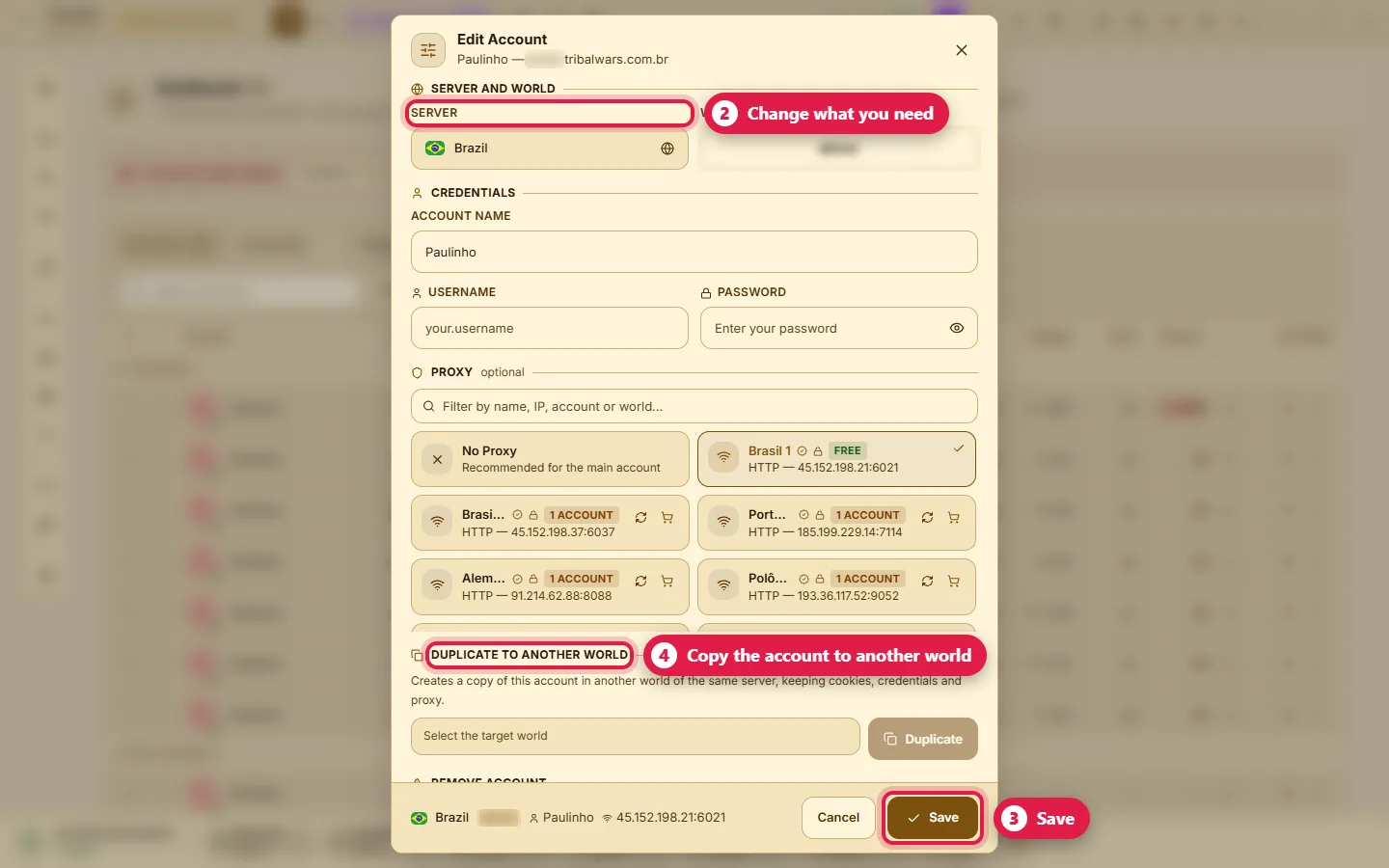
Everything you entered when adding the account can be changed later: server, world, name, username, password and proxy. This is also where you copy the account to another world or remove it from the app.
Removing only takes the account out of PS Evolution. Your Tribal Wars account keeps existing as usual.
Step by step
-
Open "Edit Account"
On the account row, click the "Configure" gear. Another way: right-click the account (or click "More actions") and choose "Edit".
-
Change what you need
In "Server" and "World", change the country and the world. "Login Credentials" holds "Account Name" (the name shown in the app) and your game "Username" and "Password". In "Proxy", pick another proxy, test it with "Test connection" or add a new one.
-
Save
Click "Save". The new password now fills in the game's login window. If the account was running with the old proxy, stop it and start it again so it goes out through the new proxy.
-
Copy the account to another world
In "Duplicate to another world", choose the world in "Select the target world" and click "Duplicate". The app creates a copy of the account in the other world of the same server, with the same cookies, credentials and proxy.
-
Remove the account
At the bottom of the window, click "Remove account", then "Delete" under "Confirm deletion?". From the right-click menu, the option is "Delete". For several at once, tick the account checkboxes and use "Delete" in the bar that shows up at the bottom. This cannot be undone.
What each option does
| Option | What it is for |
|---|---|
| Account Name | Only the name shown in the app. It changes nothing in the game. |
| Test connection | Tests the proxy against the server of the account's world and shows "Tested against ..." or the error. |
| Paste proxy(s) | Adds several proxies at once, one per line, in the format host:port:user:password. |
| Duplicate to another world | Creates another account in the app, in the chosen world, with the same login and proxy. |
| Join another world | In the account's right-click menu. Opens the game window to start in a new world, near a village (ID) or coordinate; the app creates the account in that world and goes back to automatic once the village exists. |
Tips
- Changed your password in the game? Update it here too. With no saved password, the account shows a message saying its password is not stored on this computer.
- Going to remove the account and add it again? It comes back as a new account. Use a Profile to repeat the tool settings.
- Removing an account does not delete your registered proxies: they stay in the list for other accounts.
Common problems
I get "Name is required" or "World is required"
Fill in the account name and pick the world before you click "Save".
The "Configure" gear is grayed out
Account details can only be edited on the Main computer. On this computer you see "Available only on the Main computer".
I changed the world and the account does not connect
Check that your game account already plays in that world. If it has not started there yet, the app opens the browser for you to choose a region and reconnects once the first village exists.
See also
Do not have PS Evolution yet?
The download is free: download it, create your account inside the app and try everything for 24 hours, no card.