 PS Evolution
How to organize many accounts in PS Evolution: groups, profiles, filters and columns
With many accounts, the Dashboard has tools to find and work on just the ones you care about: favorites, color groups, filters by status and by world, configurable columns and bulk actions.
Profiles solve another problem: you set up the tools on one account and copy those settings to the others, or set a profile as the default so every new account starts already configured.
Step by step
-
Create groups
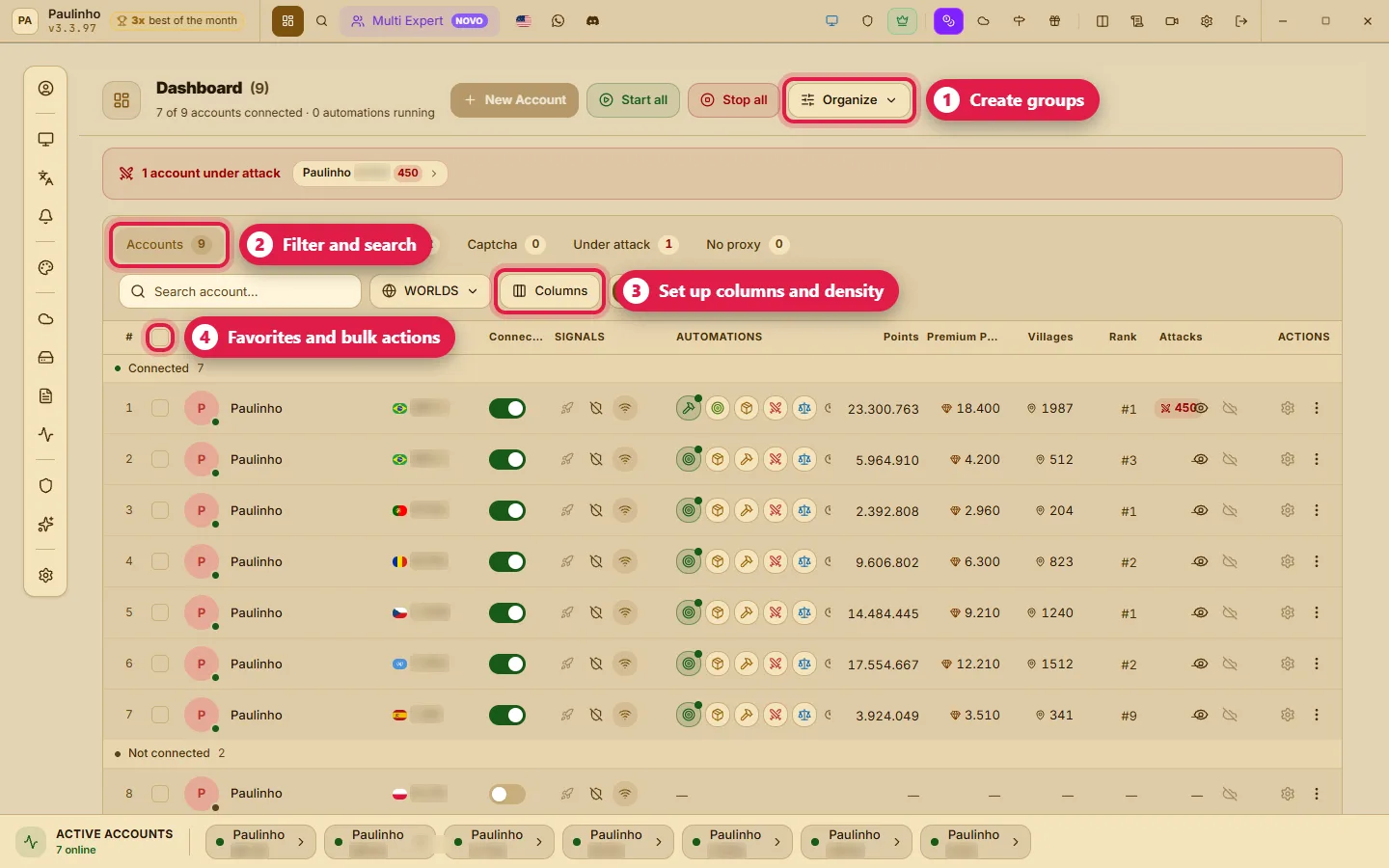
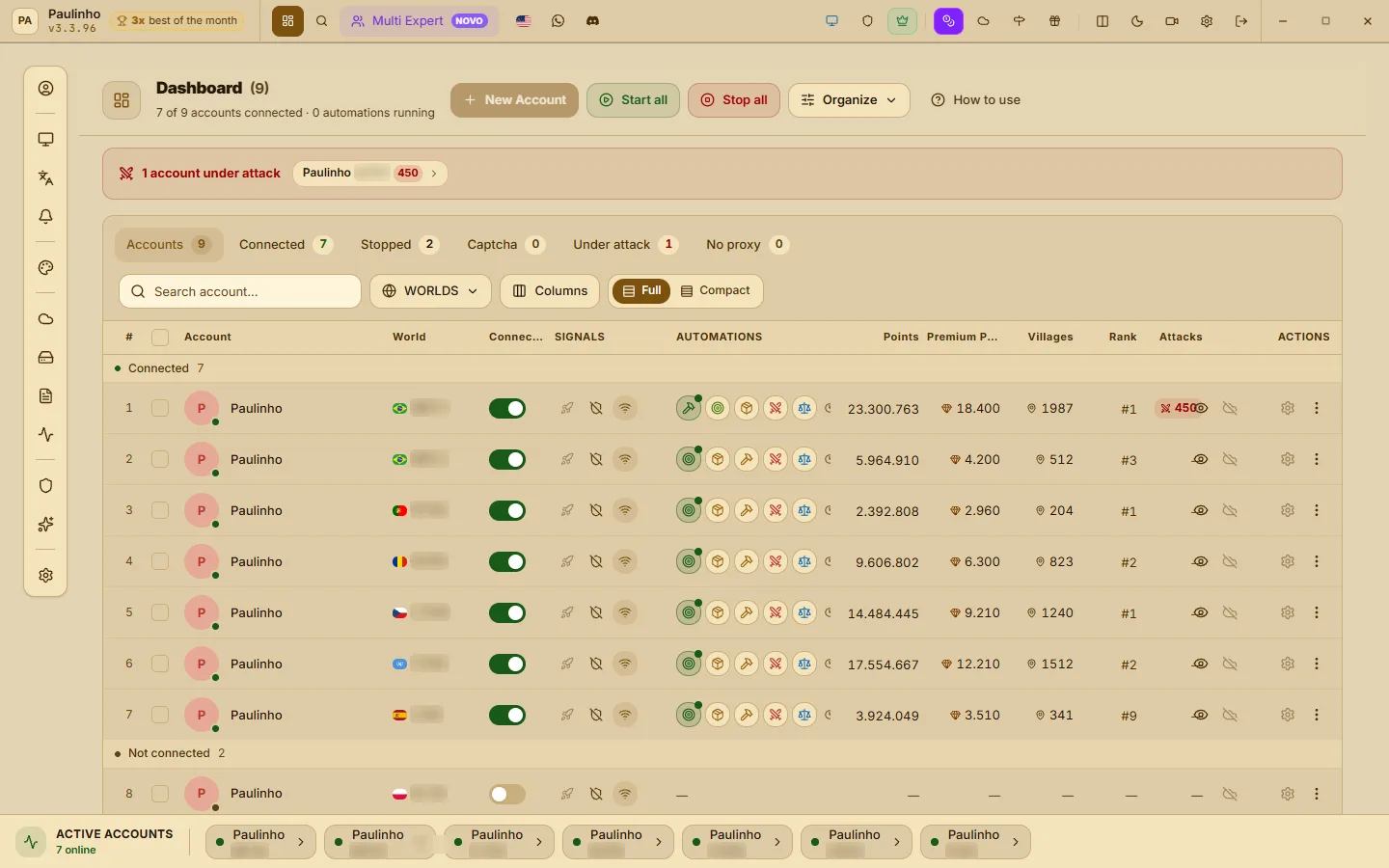
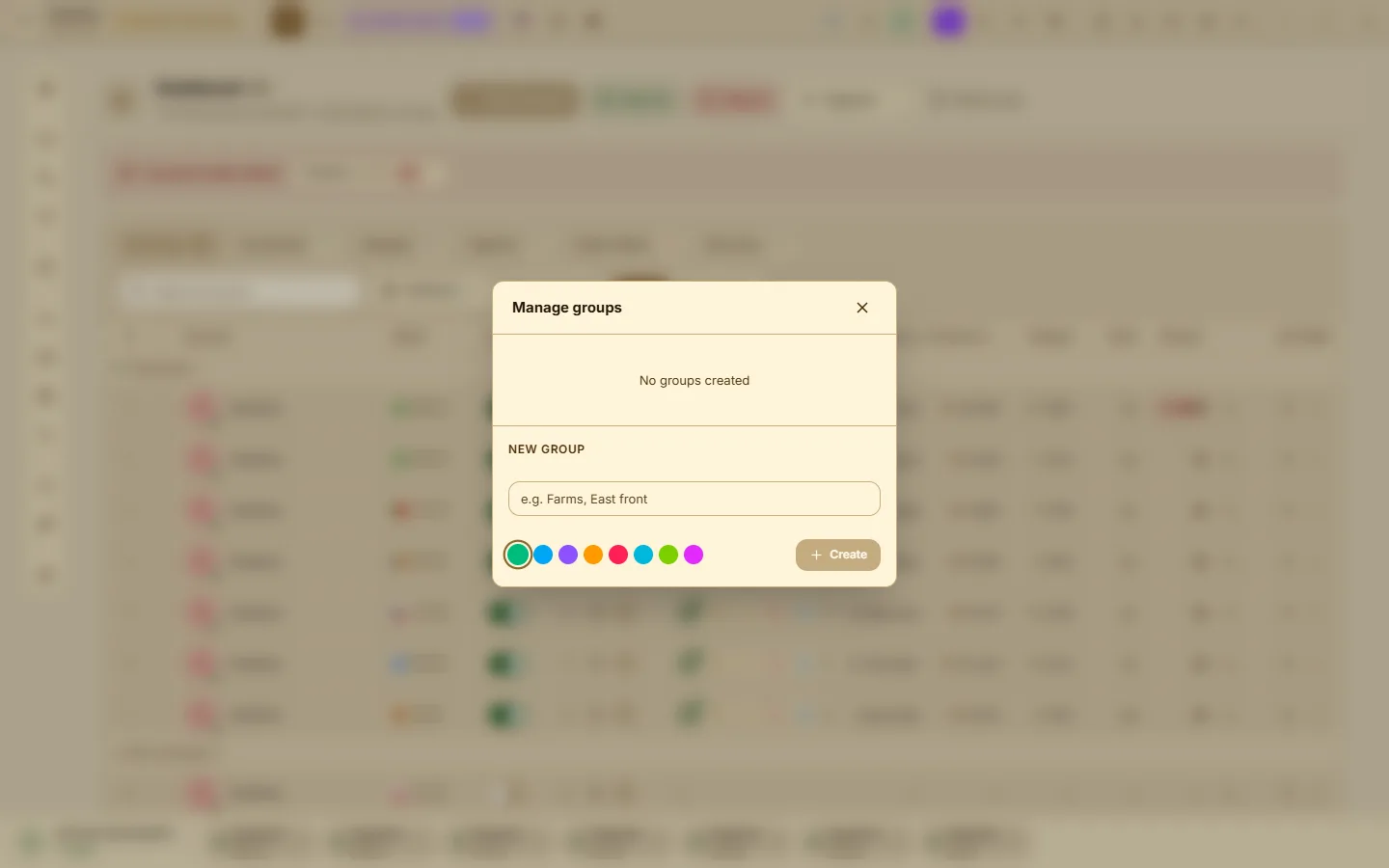
Click "Organize" > "Groups". In "Manage groups", click "New group", give it a name (for example "Farms" or "East front"), pick the "Color" and click "Create". To put accounts in the group, use "Manage group accounts" or right-click an account > "Groups".
Create groups -
Filter and search
Use the "Accounts", "Connected", "Stopped", "Captcha", "Under attack" and "No proxy" tabs. The list bar has "Search account...", the "Worlds" filter and the "Groups" filter (with "All" and "Ungrouped").
-
Set up columns and density
In "Columns", drag to reorder and use the eye to show or hide (Points, Premium Points, Attacks, Villages, Signals, Automations and more). "Default" restores the original. "Full" and "Compact" change the row height, and "Rows per page" sets how many show up.
-
Favorites and bulk actions
The star marks the account as a favorite; favorites stay at the top and can be reordered with the arrows. Tick the account checkboxes (or "Select all") and use the bar at the bottom: "Start", "Stop", "Favorite" or "Delete".
-
Create a configuration profile
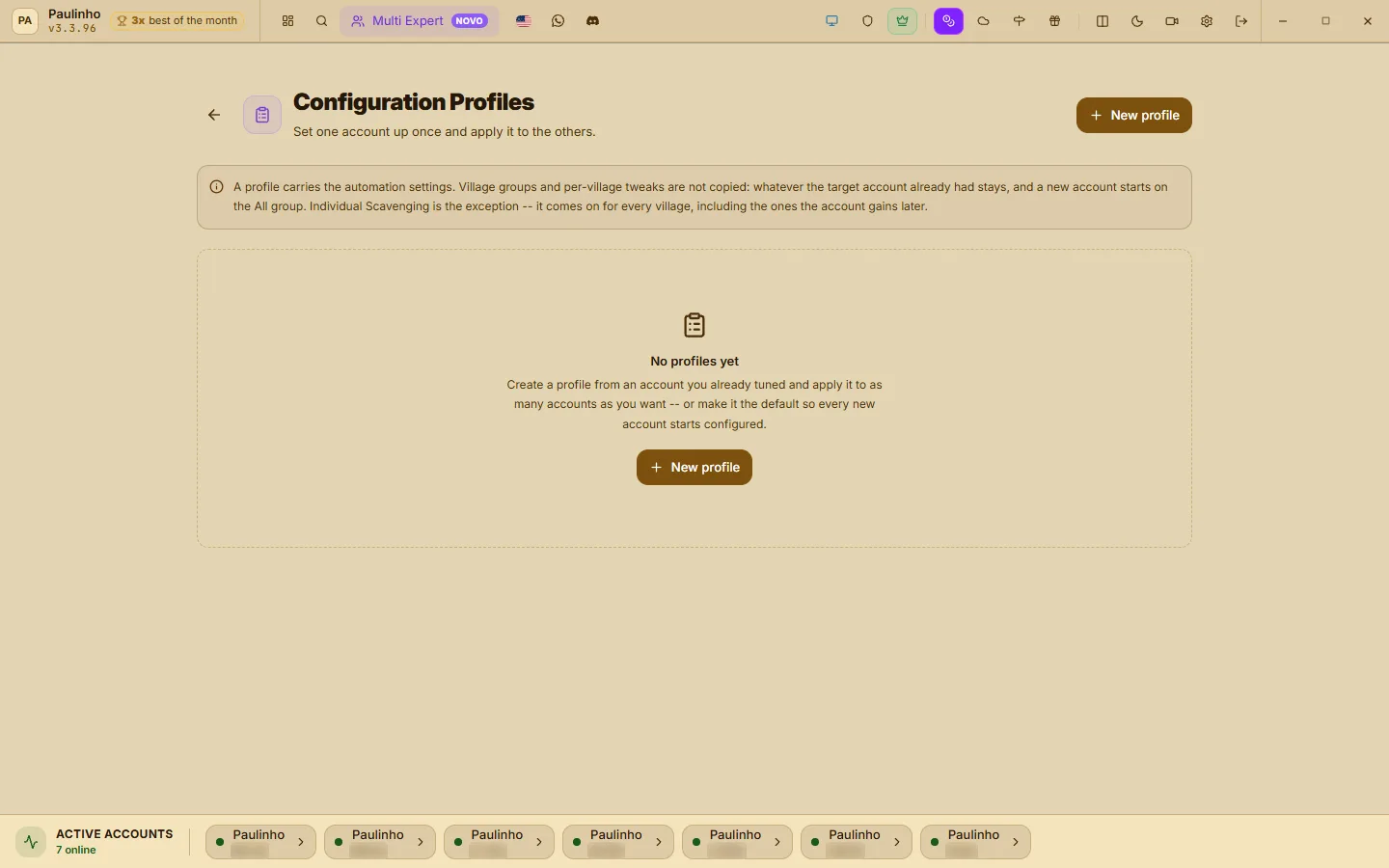
In "Organize" > "Profiles", click "New profile". Give it a name, pick the "Source account" you already set up, tick under "What the profile carries" the tools (Construction, Recruitment, Mass Scavenging, Auto Farm and more) and, if you want, the construction and recruitment "Default models".
-
Apply the profile
On the profile, click "Apply", tick the accounts (or "All accounts"), choose "Replace" or "Only what is empty" and click "Apply". If you turn on "Apply to every new account", the profile applies on its own to every account you add.
What the screen looks like
What each option does
| Option | What it is for |
|---|---|
| Enable auto-start | Rocket icon on the row: the account connects on its own when the app opens. |
| Replace | When applying a profile, overwrites the current settings of the tools the profile carries. |
| Only what is empty | Keeps what the account already has and fills in only what is missing. |
| Apply to every new account | Only one profile at a time can be the new account default. |
| Delete group | Deletes only the group. The accounts are not deleted, just ungrouped. |
Tips
- A profile copies the tool settings. Village groups and per-village settings are not copied; Individual Scavenging is the exception and comes in turned on in every village.
- In the "Bulk" tab of "New Account", the "Groups" field puts the new accounts straight into the groups you choose.
- Deleting a profile does not undo anything on the accounts it already configured.
Common problems
I applied the profile and one area did not change
Check the apply result: "Left untouched" shows when you used "Only what is empty" and the account already had that setting, or when the source account had nothing in that area.
The recruitment model did not apply in some villages
Villages that already have their own model keep it. The default model applies to the rest.
See also
Do not have PS Evolution yet?
The download is free: download it, create your account inside the app and try everything for 24 hours, no card.