 PS Evolution
How to download and install PS Evolution on Windows, macOS and Linux
PS Evolution is a desktop app. The download is free and needs no account: you download it, install it and create your account inside the app.
There is a version for Windows (64-bit), macOS (one installer for both Intel and Apple Silicon Macs) and Linux (64-bit AppImage). To open your game accounts, the app uses the Google Chrome or Microsoft Edge installed on your computer, so keep at least one of them installed.
Step by step
-
Download the installer for your system
On ps-evolution.com, click "Free download for Windows" (the button shows the system the site detected). If you are on another system, use the "Also for" links right below it. If you already have an account, you can also find the download in the customer area, under "Download".
-
Windows: run the installer
Open the file
PS-Evolution-...-win-x64.exe. It is a one-click install: it does not ask for a folder, creates "PS Evolution" shortcuts on the desktop and in the Start menu, and opens the app at the end. If Windows shows a protection warning when you open a file downloaded from the internet, make sure the file came from the official site before you continue. -
macOS: drag it to Applications
Open the
.dmgfile and drag PS Evolution to the Applications folder. The app is not notarized by Apple, so macOS may block it the first time you open it. If that happens, go to System Settings > Privacy & Security and click "Open Anyway". -
Linux: make the AppImage executable
Download the
.AppImagefile, mark it as executable (in the file properties or withchmod +x) and open it. On Linux the app looks for Google Chrome or Chromium in/usr/binor in snap. -
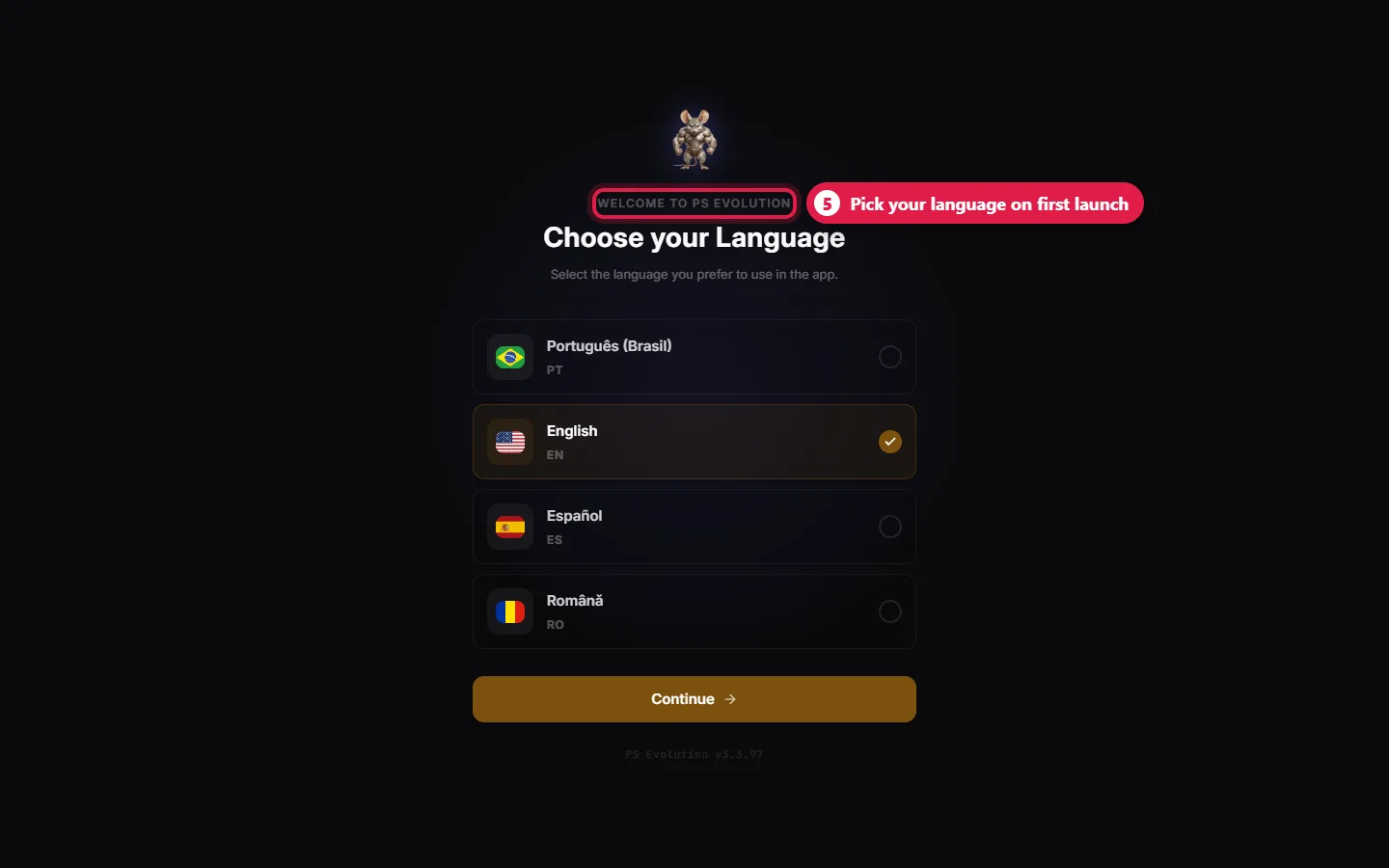
Pick your language on first launch
The first time, you see the "Welcome to PS Evolution" screen with "Choose your Language". Select a language and click "Continue". Next comes the login screen, where you create your account.
What each option does
| Option | What it is for |
|---|---|
| Start with Windows | Opens the app on its own when the computer starts. It is in Settings > General > System. |
| Start minimized | The app opens straight to the system tray, without showing the window. |
| Minimize to tray | Closing the window only hides the app in the tray; your accounts keep running. |
| Game browser | "Automatic" uses the installed Chrome or Edge. "Google Chrome" and "Microsoft Edge" force one of them. It is in Settings > General. |
Tips
- Install Google Chrome before you add your accounts. With neither Chrome nor Edge on the computer, no account opens.
- Uninstalling and reinstalling on Windows does not erase the app data (accounts and settings are kept).
- The installed version shows at the bottom of the login screen, like "PS Evolution v3.x.x".
Common problems
I get "Google Chrome was not found on this computer"
Install Chrome (google.com/chrome) and start the account again. If you prefer Edge, go to Settings > General > Game browser and choose "Microsoft Edge".
Accounts open with the "Aw, Snap!" page (STATUS_STACK_BUFFER_OVERRUN)
Switch the browser in Settings > General > Game browser (from Chrome to Edge, or the other way around) and start the accounts again. Keep the chosen browser up to date.
"Windows blocked this account's browser from opening"
It is almost always your antivirus blocking PS Evolution. Allow the app in your antivirus and try again.
My Mac says the app cannot be opened
Open System Settings > Privacy & Security and click "Open Anyway" next to the PS Evolution warning. You only need to do this the first time.
See also
Do not have PS Evolution yet?
The download is free: download it, create your account inside the app and try everything for 24 hours, no card.